


Migrating a WordPress site involves moving complex databases and large file directories across different server environments. This guide addresses the most frequently encountered issues during and after migration, providing clear causes and actionable solutions to ensure a successful transfer.
Issues During Migration
The export and transfer phases are the most resource-intensive. Most failures at this stage are triggered by server-side restrictions, you can usually resolve these issues by optimizing the WPvivid Advanced Settings or by increasing your server’s disk space and timeout thresholds.
Note
The issues below pertain specifically to the file transfer process of the migration option. For issues appearing during restoration on the destination site, refer to the Restore Failed doc.
The issues below pertain specifically to the file transfer process of the migration option. For issues appearing during restoration on the destination site, refer to the Restore Failed doc.
Export timeout / Too many resumption attempts
- Cause
The web server has insufficient CPU, RAM, or execution time to process a large website, especially when zipping many files at once. - Solution
Adjust WPvivid settings as suggested in this doc.
[error]PCLZIP_ERR_MISSING_FILE (-4) : Missing archive file
- Cause
The available web server space is insufficient for creating more backup files, or your web server restricts a high volume of read/write operations in a short interval. - Solution
Check disk space of the web hosting account and ensure that the available disk space is at least twice the website size.
[error]Backup ends with an error PCLZIP_ERR_BAD_FORMAT (-10) : gzip temporary file
- Cause
The server forcefully terminated the process before completion, leaving a corrupted Gzip file (usually minimum 18 bytes error). - Solution
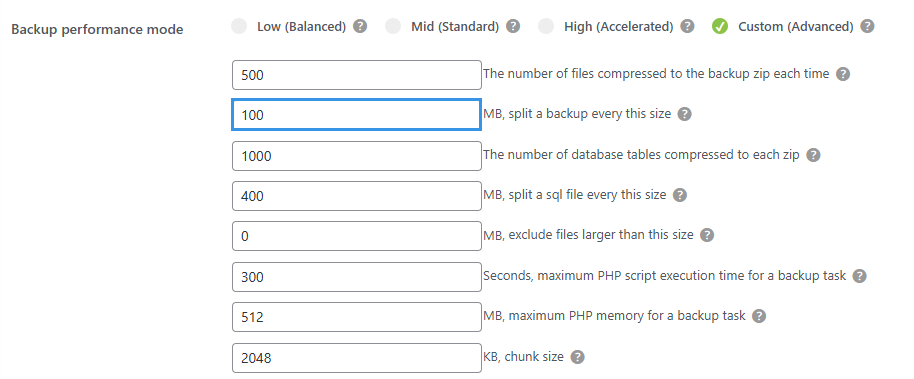
Go to WPvivid Plugin → Advanced Settings → Select Custom (Advanced) as the backup performance mode → Change the value of Split a backup every this size to 50MB or 100MB. If the error persists, consider upgrading your hosting plan to one with higher resource limits.
cURL error 51: SSL: no alternative certificate subject name matches target host name
- Cause
The target server presented an SSL certificate that is not valid for the hostname you are using to access it. - Solution
We recommend using the manual transfer method to move your site files.
Finish upload to send_to_site error: cURL error 28: Operation timed out
- Cause
The target site has strict limits on receiving large data chunks, causing the connection to drop during the transfer. - Solution
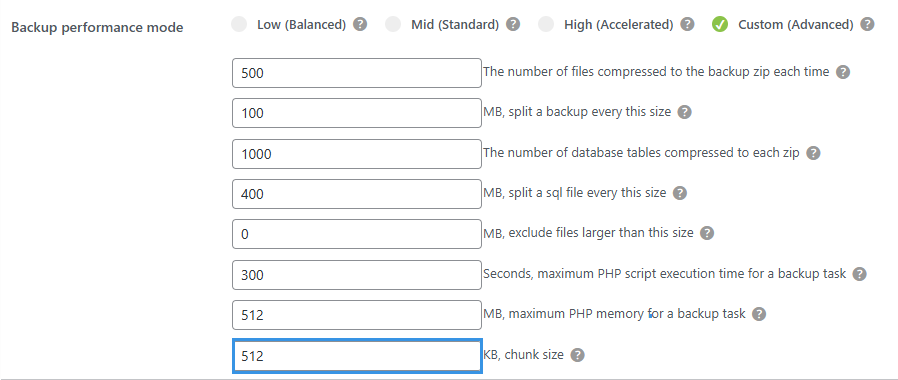
Go to WPvivid Plugin → Advanced Settings → Select Custom (Advanced) as the backup performance mode → Change Chunk Size to 512 or 256 KB. If the error persists, we recommend following the manual transfer method to move your site files.
cURL error 60: SSL certificate problem: unable to get local issuer certificate
- Cause
The local server environment lacks a valid root certificate bundle to verify SSL connections during the transfer. - Solution
Download the latestcacert.pemfrom curl.haxx.se → update yourphp.inifile with the line:curl.cainfo="/path/to/cacert.pem".
Error with AffiliateWP / wp_affiliate_wp_campaigns
- Cause
The tablewp_affiliate_wp_campaignsis a database “view” and cannot be exported like a standard physical table. - Solution
Manually uncheck thewp_affiliate_wp_campaignstable in the database selection list before starting the export.
Export cannot be canceled
- Cause
The WP-Cron system on your website is not executing properly, preventing the cancel task from being properly executed. - Solution
Check your website cron system and make sure it is working properly. You may need to defineDISABLE_WP_CRONasfalseor set up a real system cron job in cPanel.
Issues After Migration
The destination website is not working as expected after migration is complete.
Unable to log in or “Website is inaccessible”
- Cause
A prefix mismatch between the databaseoptionstable and yourwp-config.php, often caused by security or SSL plugins. - Solution
Use phpMyAdmin to ensure theprefix_user_rolesandprefix_capabilitiesrows in theoptionstable match your current database prefix (e.g.,wp_).
Only the homepage is accessible (404 on other pages)
- Cause
The.htaccessfile or rewrite rules did not refresh to accommodate the new domain or server path. - Solution
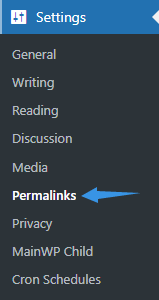
Navigate to WordPress Settings of destination site → Permalinks and click Save Changes twice to flush and regenerate the rewrite rules.
Missing background images (Elementor / Oxygen)
- Cause
Page builders cache CSS paths that still point to the old source URL after migration. - Solution
If you use Elementor page builder → Go to Elementor > Tools > General > Clear Files & Data → Save Changes. If you use Oxygen page builder → Use their built-in Import/Export tool to resign shortcodes and refresh styles.

Recommendation
To avoid compatibility issues, it is highly recommended to use identical or closely matching versions of WordPress, PHP, and MySQL on both source and destination sites.
To avoid compatibility issues, it is highly recommended to use identical or closely matching versions of WordPress, PHP, and MySQL on both source and destination sites.