


What Is General Backup Schedule
General backup schedule allows you to automatically create full backups of your WordPress files and database at fixed intervals. This is the recommended solution for most websites that prefer simple, complete restore points without using incremental backup chains.
Key characteristics:
- Complete Backups
Each backup includes all selected content (database and/or files) - Standalone Restore Points
Every backup can be restored independently without requiring other backups - Scheduled Automation
Backups run automatically at your configured intervals - Multiple Schedules
Create different schedules for different content, frequencies, or destinations - Simple Restoration
Restore from a single backup file without managing backup chains
When to Use General Backup Schedules
General backup schedules are ideal for:
- Small to Medium Sites:
Sites under 5GB where full backups complete quickly (typically under 5-10 minutes) - Infrequently Updated Sites
Sites updated weekly or less frequently don’t need hourly incremental protection - Simple Restore Needs
When you prefer straightforward single-file restoration without managing backup chains - Moderate Backup Frequency
Daily or weekly backups are sufficient for your protection needs - Portable Backups
When you need self-contained backup files that can be easily downloaded or migrated - Mixed Content Strategies
Different content backed up at different frequencies (database daily, full site weekly)
How to Set Up General Backup Schedules
General backup schedules cannot run at the same time as incremental backup schedules. If an incremental backup schedule is currently enabled, it must be disabled before activating a general backup schedule.
Step 1: Access General Backup Schedule Settings
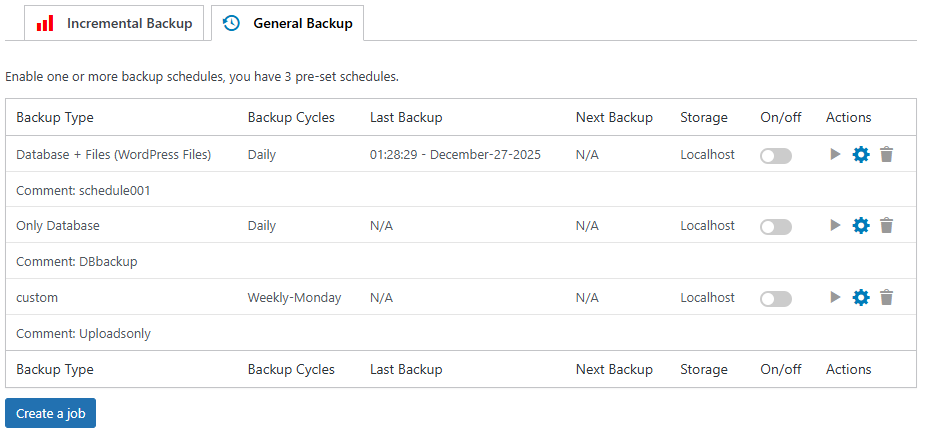
- Go to WPvivid Backup Pro → Backup Schedule
- Select the General Backup tab
- You will see the default general backup schedule templates available for configuration
Step 2: Configure General Backup Schedule
Customize the backup schedule settings to match your website update frequency and storage strategy.
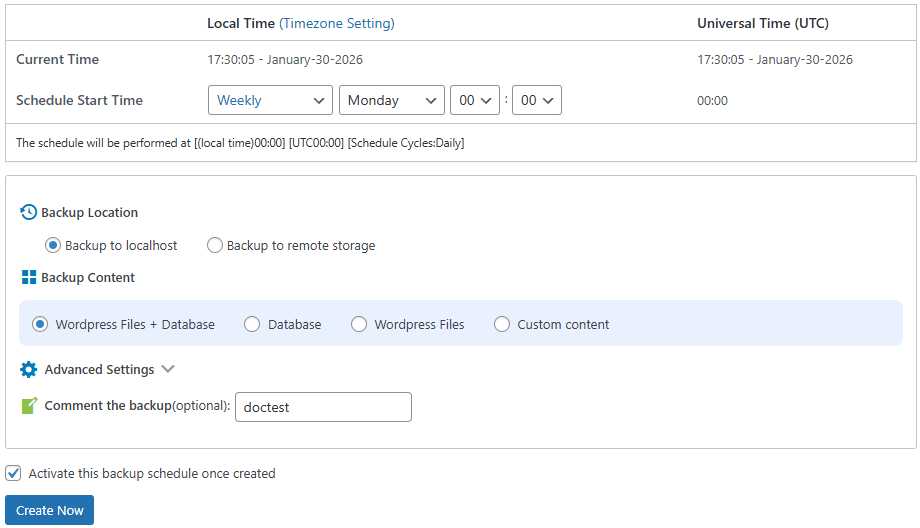
- Access schedule settings
Click the Edit icon of a template or click the Create a job button to expand the configuration panel - Set backup frequency and start time
Choose how often backups should run (e.g., hourly, daily, weekly, or monthly) and specify the exact execution time. - Select backup destination
Choose where backups will be stored, including local server storage and connected remote storage services such as Google Drive or Amazon S3 - Configure backup content
Select which WordPress files and database tables should be included, exclude unnecessary directories such as cache folders or temporary files to reduce backup size - Add a schedule comment (optional)
Enter a descriptive note to help identify the purpose of this backup schedule, especially useful when managing multiple schedules - Save your configuration
Click Update Schedule to apply your customized settings
Step 3: Enable the Backup Schedule
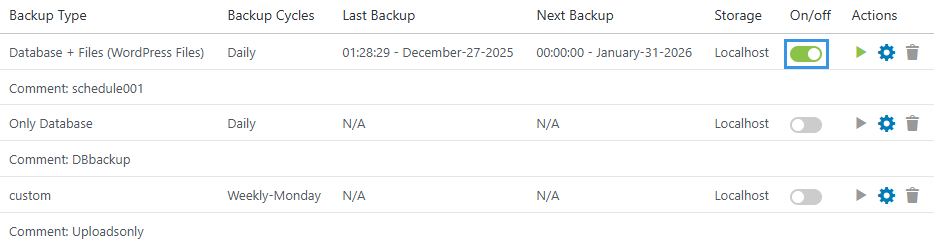
- Activate the schedule
After reviewing your configuration, toggle the On/off switch to enable your backup schedule.
Step 4: Verify Schedule Status
After enabling the schedule, confirm that it is active and properly configured.
- Ensure the schedule status is displayed as Enabled
- Verify that the Next Backup execution time is correctly displayed
For most websites, scheduling backups during early morning hours (such as 2–4 AM local time) provides the best balance between performance impact and data protection.
Multi-Schedule Strategies
WPvivid Backup & Migration Pro allows you to create multiple general backup schedules, each with different configurations, which enables sophisticated backup strategies:
- Different Content Frequencies
Implement high-frequency database backups (e.g., daily) alongside comprehensive full-site backups on a weekly basis - Separate Content Types
Create one schedule dedicated to database backups and another for file backups, each with independent frequency and retention rules - Multiple Storage Destinations
Configure one schedule to save locally for fast restoration and a secondary schedule to sync with remote cloud storage for disaster recovery - Backup Segmentation
Reduce server load by segmenting your site backups—scheduling different directories or tables to be processed at different times
If multiple schedules overlap at the same start time, they may conflict or fail to trigger simultaneously. Stagger your start times by at least 30–60 minutes to ensure successful execution.
Best Practices for General Backup Scheduling
Follow these recommendations to maximize reliability, performance, and data protection.
- Use offsite storage
Always configure at least one remote storage destination to protect backups from server failures or hosting issues - Align backup frequency with site activity
High-traffic or transactional websites should use daily backups, while sites with infrequent updates may only require weekly schedules. can safely use weekly schedules - Schedule during low-traffic hours
Running backups during off-peak hours reduces server resource usage and minimizes impact on visitors - Exclude unnecessary directories
Avoid backing up cache folders, temporary files, and log directories to reduce backup size and improve performance - Test restore procedures regularly
Periodically perform test restores on staging environments to ensure backup integrity and restoration reliability - Enable Email Report
Enable email notifications to receive results of backup executions and detect potential issues early