


A restoration failure can be a stressful experience. This guide helps you understand why common restoration errors appear and provides actionable solutions to help you successfully recover your site.
Issues During Restoration
Restoration errors often occur when the server lacks the resources required to decompress files or import large database tables. By adjusting advanced settings for WPvivid restoration engine, you can typically resolve these bottlenecks.
Restore failed, Unknown collation
- Cause
This error means the source website uses a database collation that is not available on the destination server. Because the destination database does not recognize that collation, the database import cannot continue and the restore fails. You may see errors such as SQLSTATE[HY000]: General error: 1273 Unknown collation or Unknown collation: ‘utf8mb4_xxx_ci’. - Solution
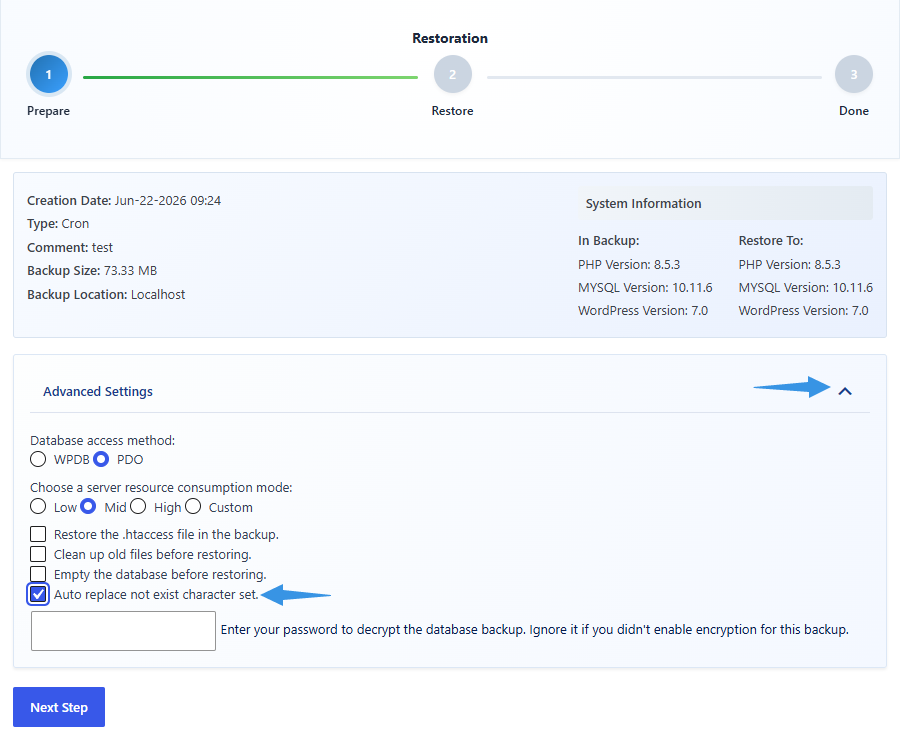
Initial the restoration again, on the restore page that opens, expand the Advanced Settings section, check the option ‘Auto replace not exist character set’, then start the restoration. This option automatically replaces unsupported collations with compatible ones that are available on the destination server, allowing the database to be restored successfully
Restore failed, SQL file importing timeout
- Cause
The server is struggling to finalize the database import, usually due to memory constraints or database packet size limits during the final stages of the process. - Solution
Increase the resources available for the task.
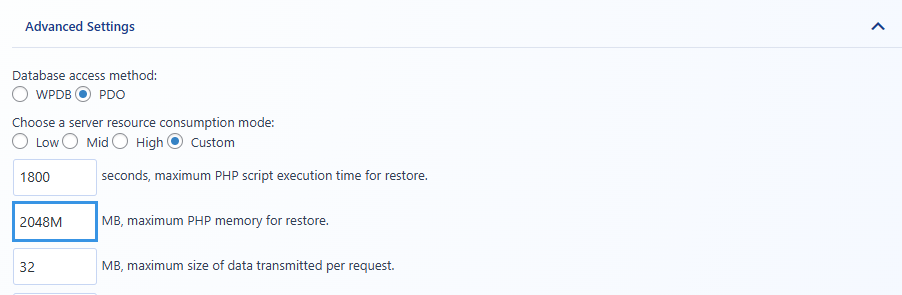
In pro version, open Advanced Settings on restore page → Custom → Increase maximum PHP memory limit for a restore task to 1024MB or 2048MB (higher than the database size).
In free version, go to WPvivid Settings → Advanced Settings → Increase PHP Memory Limit for restoration to 1024MB or 2048MB (higher than the database size). If possible, on the server side, also increase the max_allowed_packet setting in your MySQL/MariaDB configuration to 32MB or 64MB.
Restore stuck at 99%
- Cause
Similar to the timeout error, the process often hangs at the very end when merging temporary database tables into the live environment, hitting a resource ceiling. - Solution
In pro version, open Advanced Settings on restore page → Custom → Increase maximum PHP memory limit for a restore task to 1024MB or 2048MB (higher than the database size).
In free version, go to WPvivid Settings → Advanced Settings → Increase PHP Memory Limit for restoration to 1024MB or 2048MB (higher than the database size).
Failed to decode restore data file
- Cause
This usually points to environmental limits: insufficient disk space, disk I/O limits, or the PHP time limit being too low for the size of your website files. - Solution
Ensure your web hosting account has free disk space equal to at least twice the size of your website. Additionally, check if your server has a very strict limit (e.g., 60 or 120 seconds) and increase the execution time to a larger value (e.g., 180, or 300 seconds) allow the process to finish.
Allowed memory size exhausted
- Cause
The PHP memory allocated to the script has been completely used up while trying to process the backup files. - Solution
In pro version, open Advanced Settings on restore page → Custom → Increase maximum PHP memory limit for a restore task to 1024MB or 2048MB (higher than the database size).
In free version, go to WPvivid Settings → Advanced Settings → Increase PHP Memory Limit for restoration to 1024MB or 2048MB (higher than the database size).
Error: WPVIVID_PCLZIP_ERR_BAD_FORMAT (-10):End of Central Dir Record signature
- Cause
The backup files are likely corrupted, often due to the source server running out of disk space during the initial backup process. - Solution
Download the backup to your computer and try to unzip it manually:
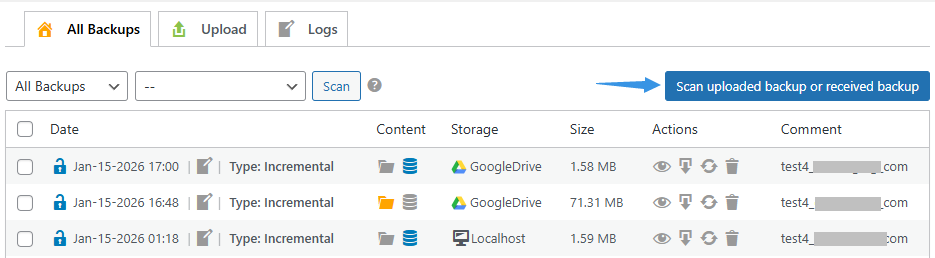
If it unzips successfully, upload the files via FTP to /wp-content/wpvividbackups on the target site → click Scan uploaded backups and try the restore again.
If it fails to unzip, it suggests that the file is broken. We recommend you to free up space on the source site and create a new backup.
Error: WPVIVID_PCLZIP_ERR_NO_ERROR (0)
- Cause
This usually indicates an incomplete backup where some parts of the archive are missing. - Solution
Ensure the source website has enough disk space (2x site size) in the web hosting account. Before creating a new backup, go to plugin settings and uncheck the option “Merge all backup files into 1 zip” to reduce the storage burden during the backup phase.
An exception has occurred: class: PDOException
- Cause
A MySQL service exception or a specific PDO interface issue on your web server preventing database access. - Solution
In pro version, switch the Database Access Method to WPDB and attempt the restoration again.
In free version, go to WPvivid Settings → Advanced Settings → switch the Database Access Method to WPDB and attempt the restoration again.

Tip
For the highest success rate, it is always recommended to perform the restoration on a fresh WordPress installation on the target site before uploading and restoring your backup files.
For the highest success rate, it is always recommended to perform the restoration on a fresh WordPress installation on the target site before uploading and restoring your backup files.