


Supported Remote Storage Providers
WPvivid Backup Pro supports a wide range of cloud and remote storage services, including:
- 1. Google Drive
- 2. Dropbox
- 3. OneDrive
- 4. OneDrive Shared Drives
- 5. Amazon S3
- 6. S3-Compatible Storage
- 7. Backblaze
- 8. Wasabi
- 9. pCloud
- 10. WebDAV
- 11. NextCloud
- 12. FTP
- 13. FTP2
- 14. sFTP
Each storage provider can be connected independently and managed from the Cloud Storage page.
Accessing Remote Storage Settings
To access remote Storage settings:
- 1. Log in to your WordPress dashboard.
- 2. Navigate to WPvivid plugin → Cloud Storage.
On this page, you can add new remote storage accounts, manage existing connections, and configure default storage behavior.
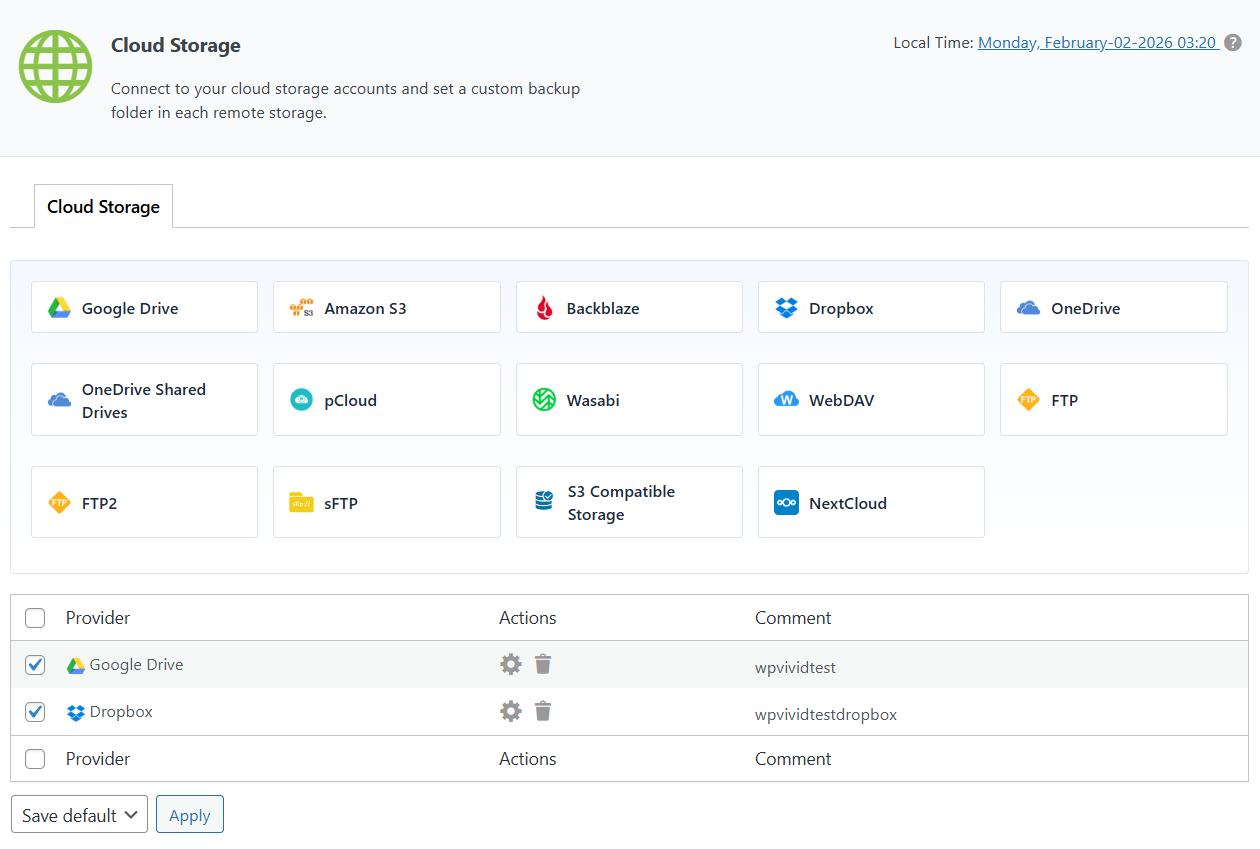
Adding a Remote Storage Account
To add a new remote storage account:
- 1. Click the icon of the desired storage provider (for example, Google Drive or Dropbox).
- 2. Follow the authorization or connection process required by the selected provider.
- 3. Provide the required information on the cloud storage settings page to finalize the connection.
Once connected, the remote storage account will appear in the provider list.
Managing Connected Storage Accounts
After a storage account is connected, it will appear in the Provider List section, which displays:
- 1. Provider – The connected cloud storage service.
- 2. Actions – Options to edit settings or remove the connection.
- 3. Comment – A custom label for easy identification.
You can manage each storage account using the available action icons:
- 1. Edit settings (gear icon).
- 2. Delete the storage connection (trash icon).
Selecting Default Remote Storage
WPvivid Backup Pro allows you to select one or more remote storage accounts as default destinations:
- 1. Check the box next to the desired storage provider(s).
- 2. Use the Save default dropdown menu.
- 3. Click Apply to confirm.
Default remote storage will be automatically used for scheduled backups and other supported operations unless otherwise specified.
Use Cases for Remote Storage
Remote Storage can be used for:
- 1. Automatically uploading backups off-site.
- 2. Reducing server disk usage.
- 3. Improving backup security and redundancy.
- 4. Importing and exporting backups.
- 5. Supporting site migration workflows.
1. Multiple remote storage accounts can be connected at the same time.
2. Removing a storage connection does not delete existing backups stored in the cloud.