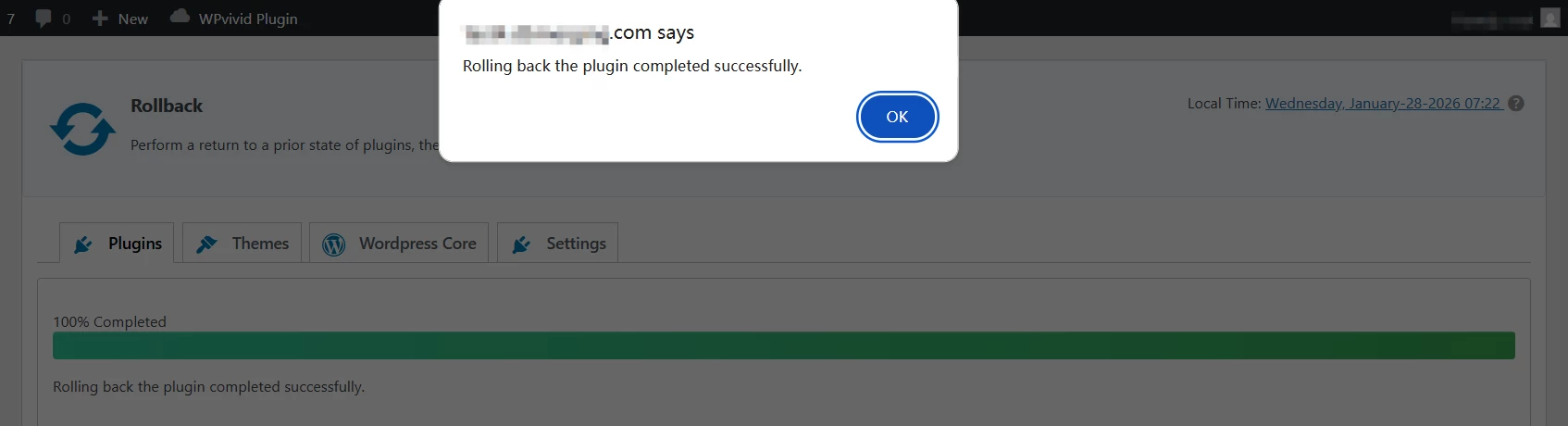
What Is Rollback?
This feature automates “versioning” for your site components. Instead of backing up your entire site manually every time a plugin needs an update, WPvivid intelligently identifies only the files being updated (plus the database) and stores them in a dedicated Rollback folder.
Key Benefits:
- 1. Minimized Downtime:
Quickly restore a single plugin or theme if an update fails. - 2. Precision Backups:
Only the specific files being updated are backed up, saving storage space.
Rather than requiring manual backups before updating, this feature ensures that a restore point is always available when update operations begin.
When Rollback Is Triggered
WPvivid Backup Pro automatically generates a rollback backup in the following situations:
- 1. WordPress Core Updates:
When WordPress core files are being updated to a newer version. - 2. Plugin Updates
When individual or multiple plugins are updated. - 3. Theme Updates
When a theme or theme package is updated.
In each case, WPvivid creates a backup before the update is applied, allowing safe reversal if something goes wrong.
Why Auto Backup Rollback Matters
Updates can occasionally introduce issues such as:
- 1. Plugin or theme conflicts
- 2. Fatal errors that break the site
- 3. Compatibility problems with PHP or hosting environments
- 4. Unintended changes in functionality
Rollback provides a restore point before updates are made, reducing the risk of site downtime and data loss.
Managing Backup Storage
Because these backups happen automatically, they can eventually consume significant disk space. We recommend:
- 1. Retention Rules:
Set a limit on how many versioning backups are kept (e.g., keep only the last 5 versions). - 2. Cloud Storage:
Use the “Rollback Folder” on your connected cloud storage (Google Drive, Dropbox, etc.) to keep your local server lean.
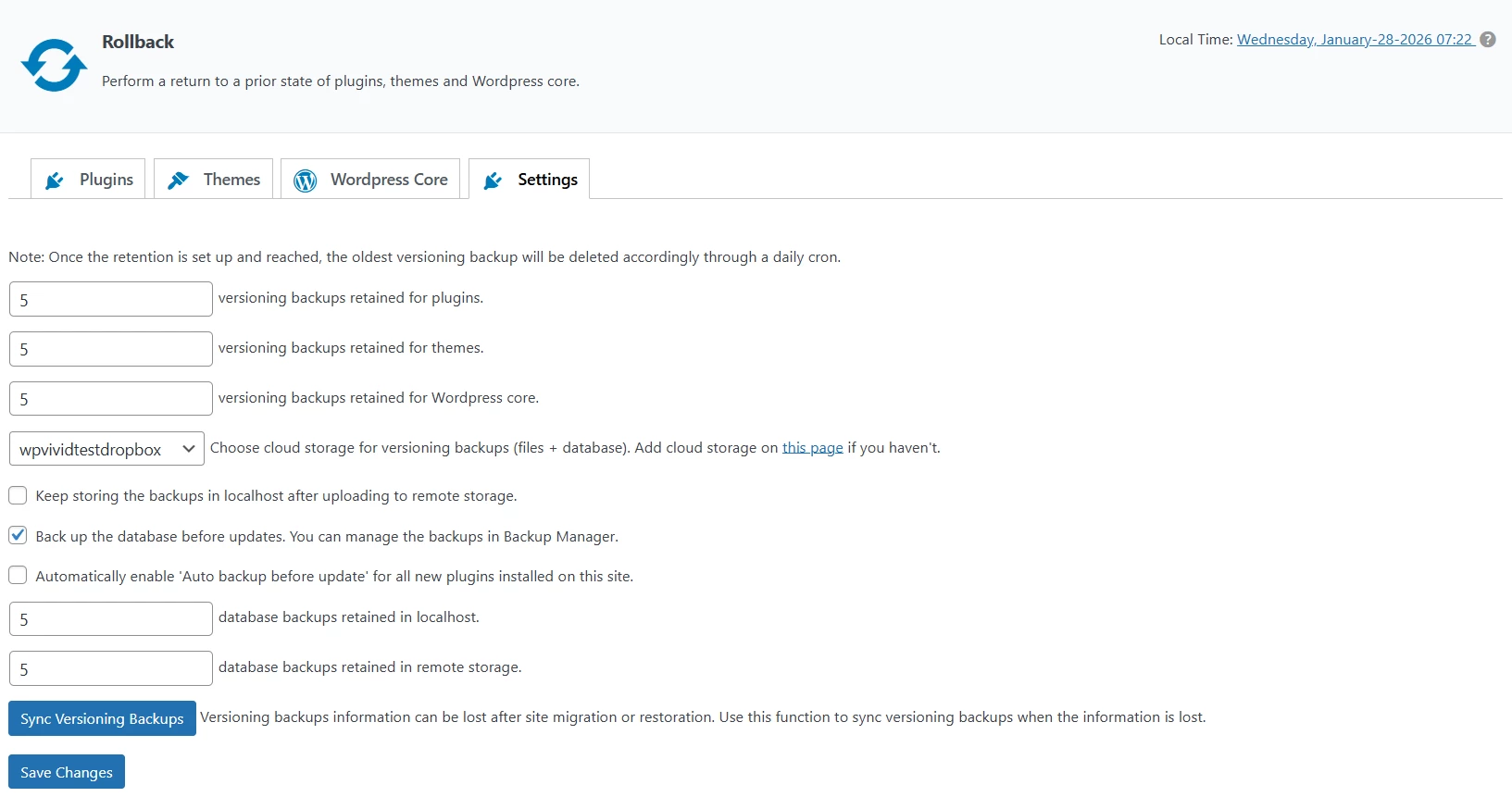
How to Enable or Disable Rollback
You can customize exactly which components trigger an automatic backup.
- 1. Navigate to the WPvivid Plugin menu in your WordPress dashboard.
- 2. Click on the Rollback.
- 3. Under the Rollback page, you can toggle “Auto Backup before Update” for:
Plugins
Themes
WordPress Core
You can also choose whether to include the database in these backups or store them directly to your cloud storage instead of the local server to save space.
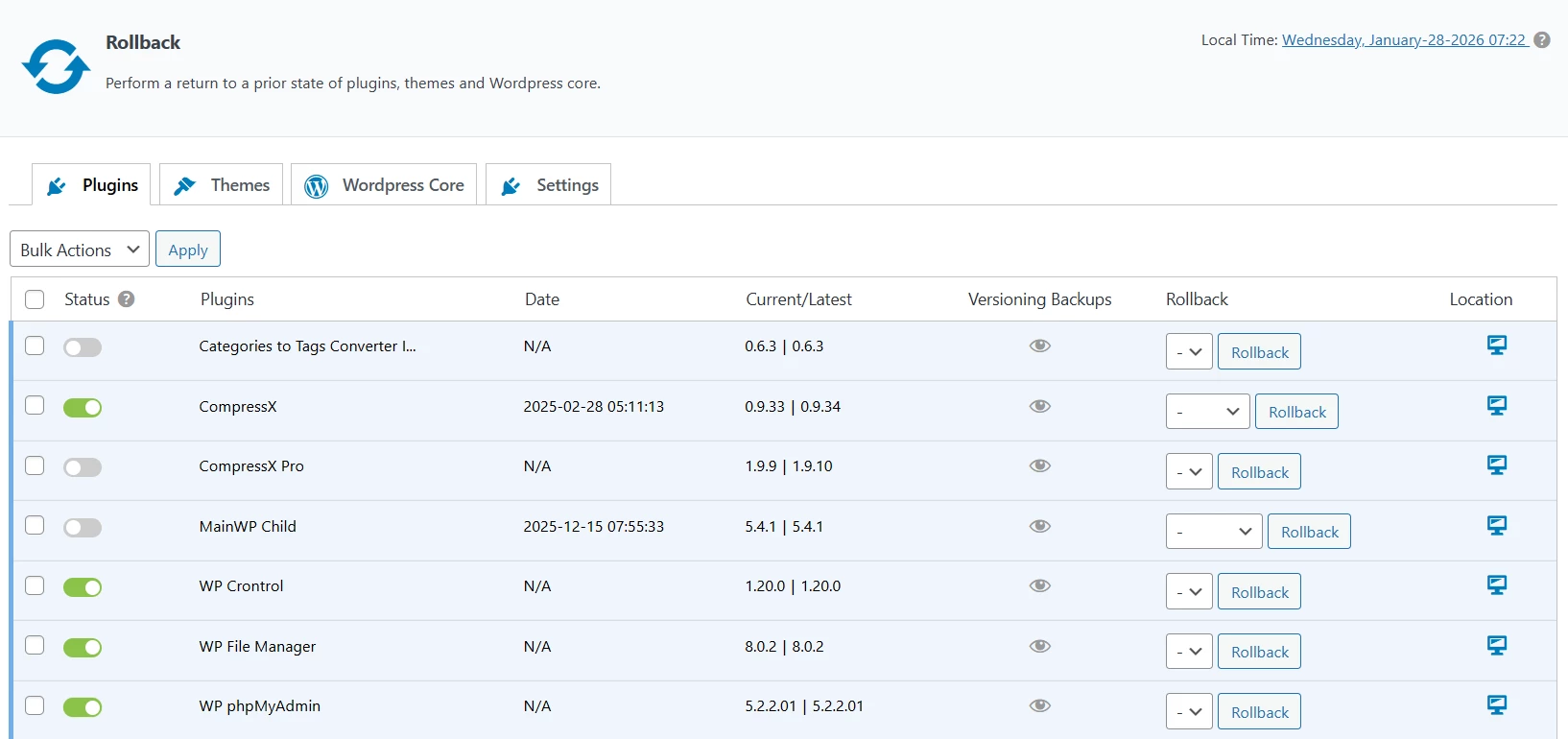
How to Perform a Rollback
If an update goes wrong, follow these steps to restore the previous version:
- 1. Go to WPvivid Plugin > Rollback.
- 2. Locate the View Versioning Backups section.
- 3. Click the Rollback button.
- 4. Wait for the process to complete. You will receive a success message once the previous version is restored.
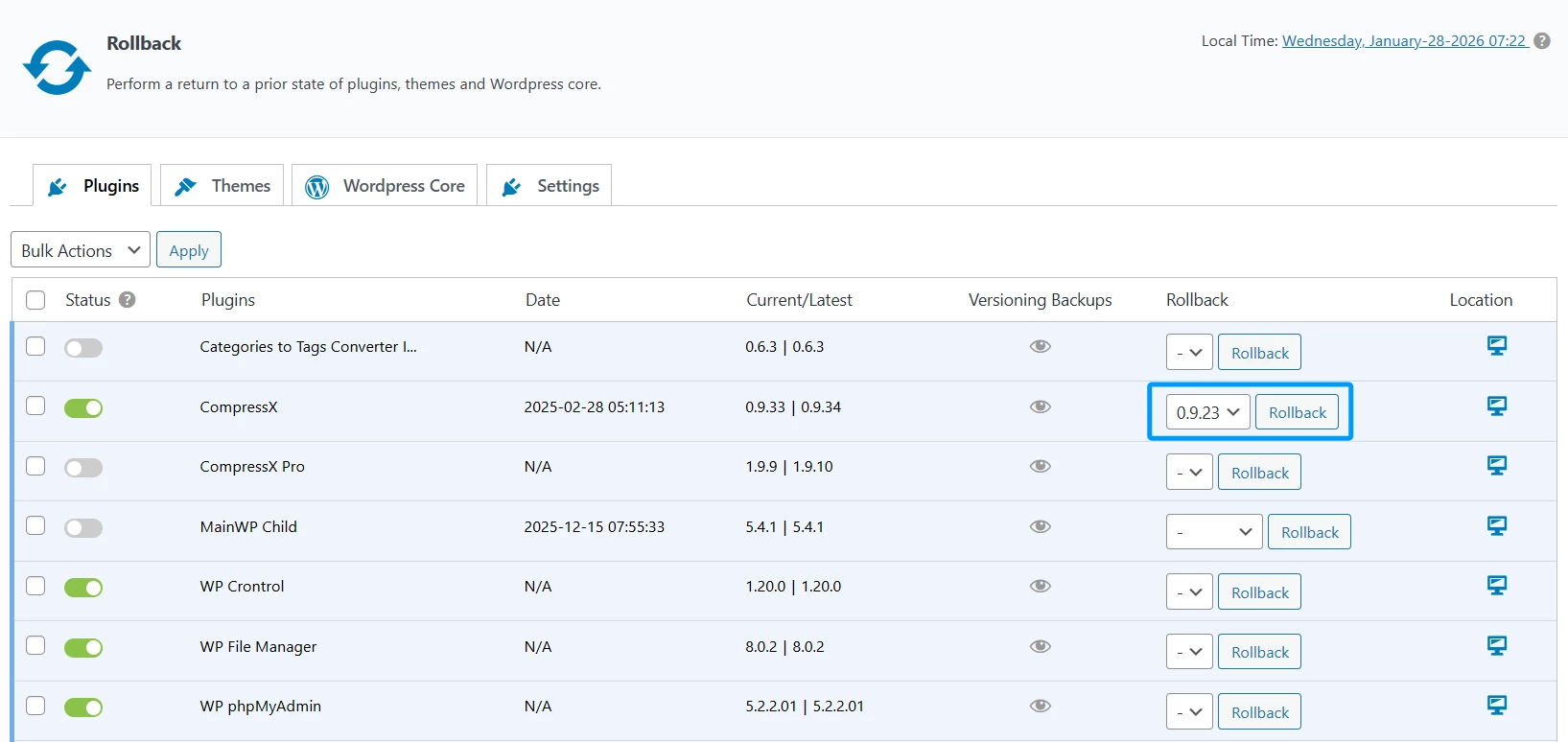
Upon successful completion, a text confirmation stating “Rolling back the plugin or theme completed successfully” will appear.