


What is the Backup Manager
The Backup Manager is the central interface where you manage all aspects of your WordPress backups. It provides a unified view of all backups regardless of how they were created (manual, scheduled, incremental, or uploaded) and where they’re stored (local server or cloud storage).
Primary functions of the Backup Manager:
- Browse complete backup inventory across all storage locations
- Find specific backups by type, location, date, or comment
- Initiate restoration from any backup, including direct restoration from remote storage
- Download backup files to your local computer for migration or safekeeping
- Upload existing WPvivid backup files from external sources
- Remove unnecessary backups to free storage space
- Access detailed logs for diagnosing problems
Accessing the Backup Manager
To access the Backup Manager:
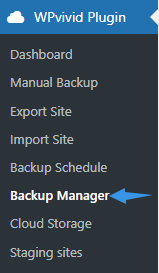
- Go to your WordPress admin dashboard
- Navigate to WPvivid Backup Pro → Backup Manager
- The Backup Manager interface opens, displaying the All Backups tab by default
This interface serves as your primary workspace for backup managing and recovery tasks.
Backup Manager Interface Overview
The Backup Manager is designed to provide fast access to all backup assets through a single unified list.
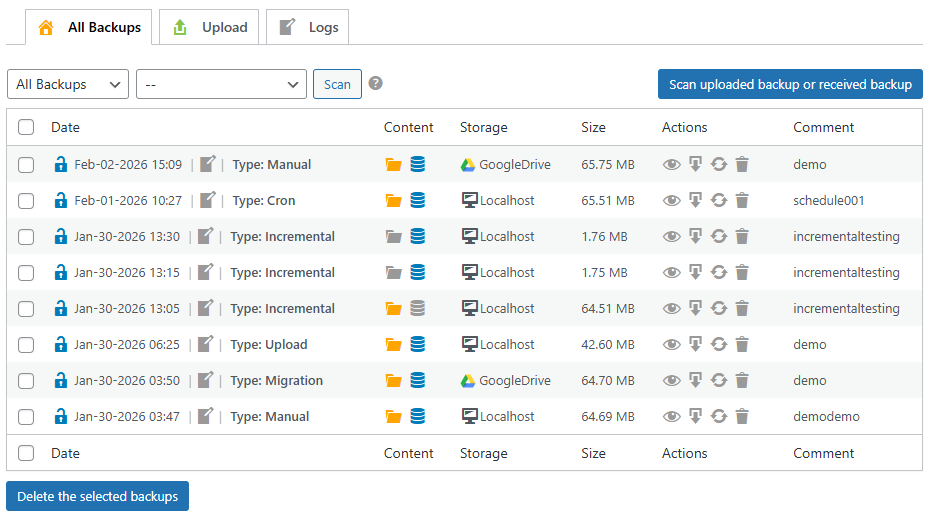
Main interface components include:
- Unified Backup List
Displays all detected backup sets regardless of storage location - Storage Source Indicator
Shows whether each backup is stored locally or on a remote destination - Scan Button
Refreshes the backup list and detects backups that match your filter rules. - Filter and Sorting Controls
Help narrow down backup results by location and type - Action Buttons
Provide quick access to view, download, restore and delete operations
Backup List Columns Explained
Each backup entry contains important metadata to help you identify and manage restore points effectively.

Common fields include:
- Backup Date / Comment
Indicates when the backup was created and the comment to help identify restore versions - Backup Type
Shows whether the backup was created by a general or incremental schedule, manual or upload operation - Backup Content
Displays whether the backup includes files, database, or both - Storage Location
Identifies whether the backup is stored locally or on a connected remote destination - Backup Size
Shows the total storage size of the backup package - Actions Column
Provides buttons for view, download, restore, and delete operations
Filtering and Searching Backups
The Backup Manager provides powerful filtering capabilities to help you locate specific backups quickly.
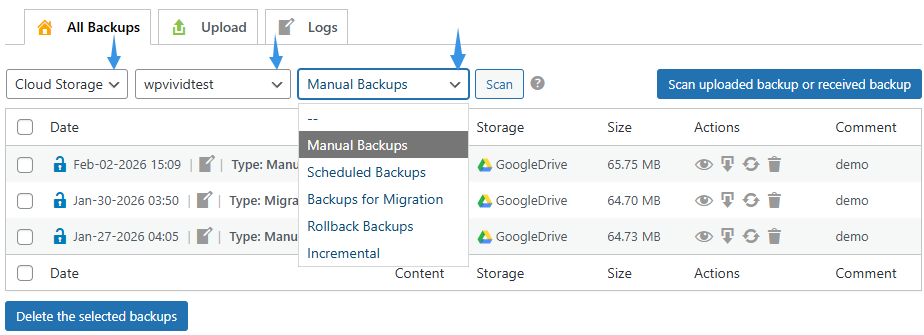
Available filtering methods include:
- Storage Location Filtering
Show backups from localhost or a particular remote storage account - Backup Type Filtering
Filter backups based on all types, manual, scheduled, uploaded, and incremental backups - Combined Filtering
Combine location and type filters for precise results - Scan Function
Click the Scan to refresh the backup list and detect new or externally uploaded backup files
Backup Actions
The Backup Manager provides core operations that allow you to manage the backup lifecycle and perform recovery tasks.
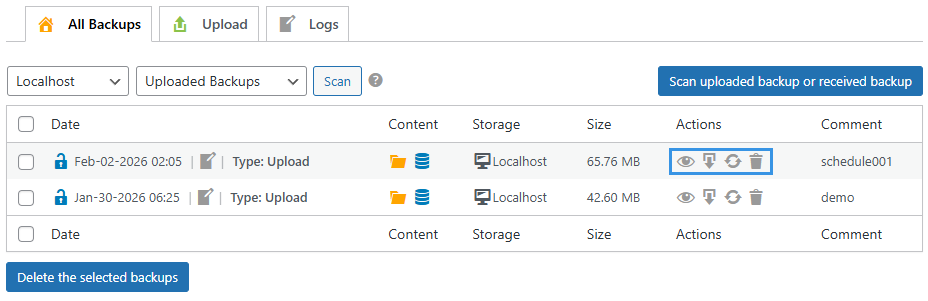
View Backup Details
Each backup entry can be expanded to display detailed information.
Backup details typically include:
- Breakdown of included components such as file packages and database backups
- Backup creation timestamp
- Incremental backup chain association when applicable
- View size of each components
- Download action to each components
This information allows administrators to verify backup completeness before initiating restoration or download actions.
Download Backups
You can download backups to your local computer for offline storage or migration purposes.
Common use cases include:
- Creating offline backup archives
- Migrating websites between servers
- Maintaining independent backup copies outside hosting environments
Restore Backups
Restoration allows you to recover website data directly from a backup.
Available restore options include:
- Full Site Restore
Restores both files and database for complete website recovery - Selective Restore
Restores only selected website folders or database tables.
Delete Backups
Deleting backups manually as needed without waiting for automatic deletion triggered by retention rules.
Important behaviors include:
- Deleted backups are permanently removed
- Local and remote backups are deleted independently
- Retention rules may automatically trigger deletion after new backups are created
Upload Backups
The Upload feature allows you to import existing WPvivid backup files into the Backup Manager. This is useful when migrating websites, restoring backups created on another server, or recovering backups stored offline.
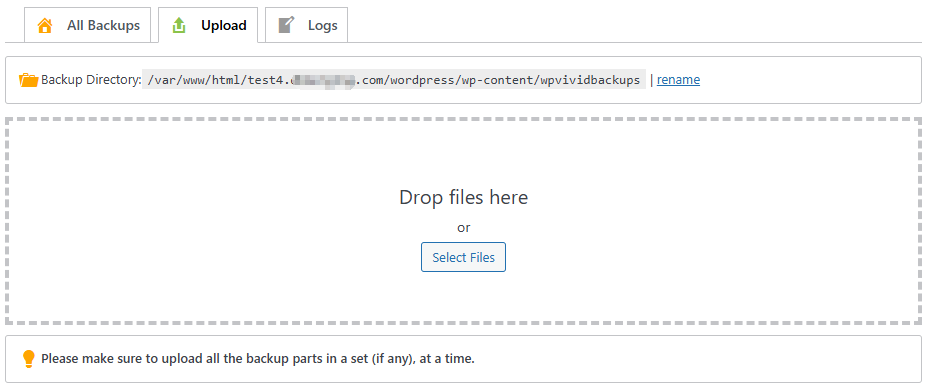
Common upload scenarios include:
- Uploading backups transferred from another hosting environment
- Recovering backups stored on local computers
- Re-import backups you previously downloaded for safekeeping
Only backup files generated by WPvivid Backup & Migration Plugin (both free and pro versions) are supported for upload and restoration.
Backup Logs
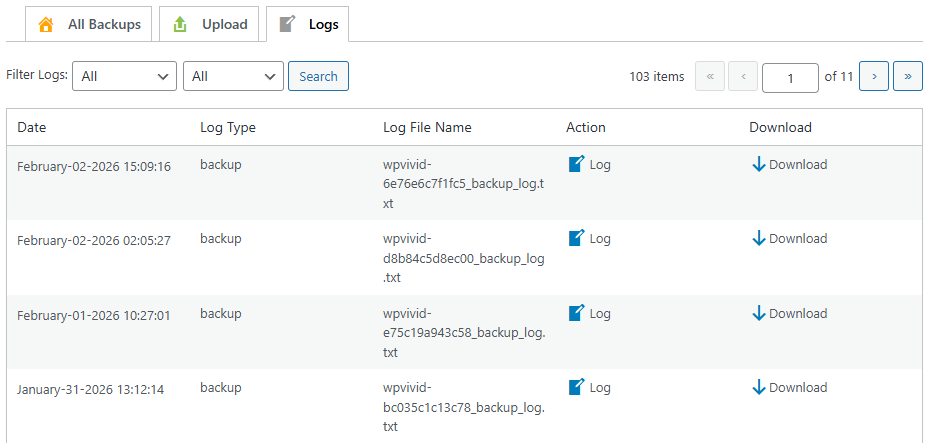
The Logs tab in WPvivid Backup Manager provides a comprehensive activity history for all backup, restoration, and migration operations performed by WPvivid.
Log Information Displayed
Each log entry contains comprehensive operation details:
- Date
Displays the timestamp when the operation started. - Log Type
Indicates the category of the operation: backup, restore, or transfer - View and Download Logs
Each entry includes a view and download actions that allow you to view and download the full log details.
Filtering Logs
Backup Logs include built-in filtering tools that make it easier to manage large log histories.
- Status Filter
Allows filtering log entries by execution result: All, Succeeded only, Failed only - Search and Filter Bar
Click the Search button to show all matched logs to your filter rules
When submitting support requests, always attach the corresponding log file. It provides complete diagnostic information and significantly reduces resolution time.