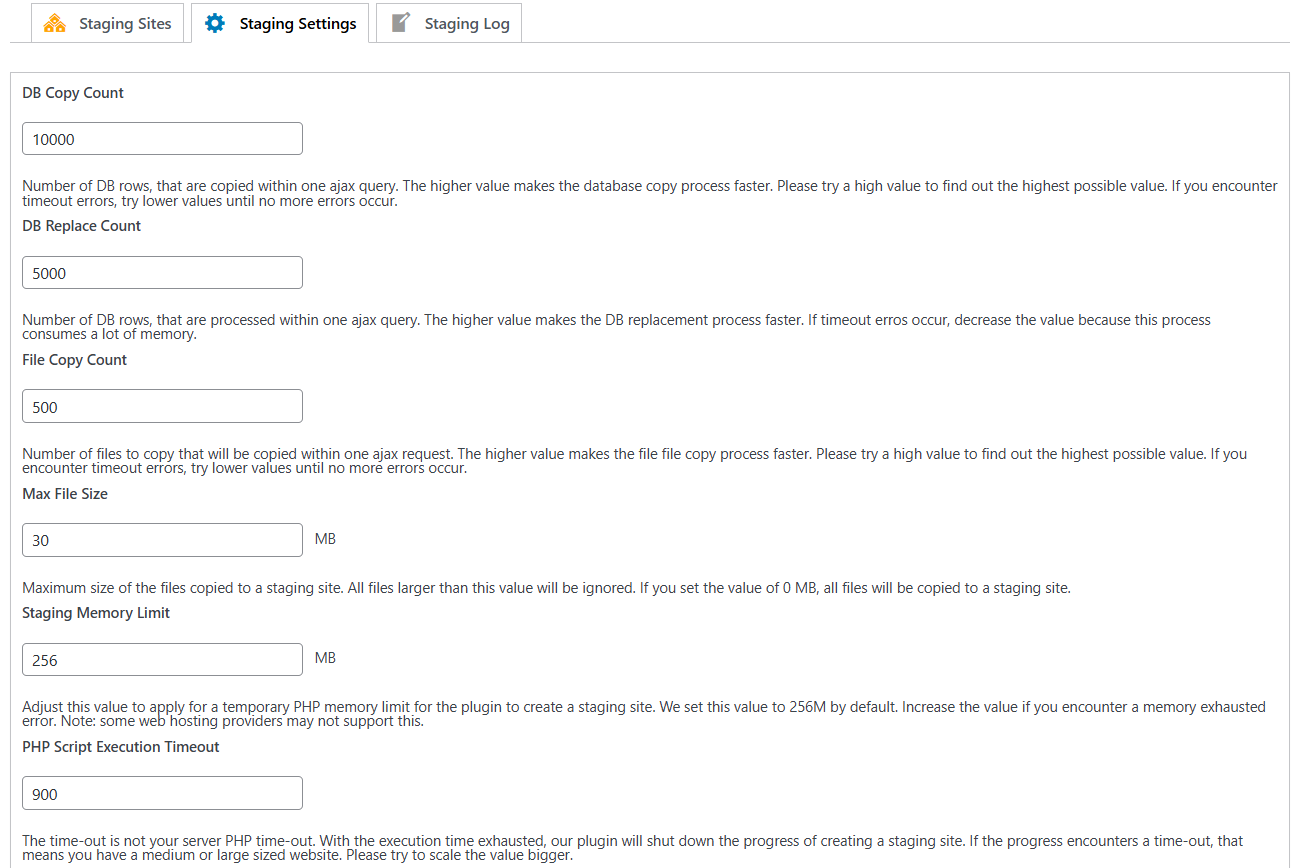
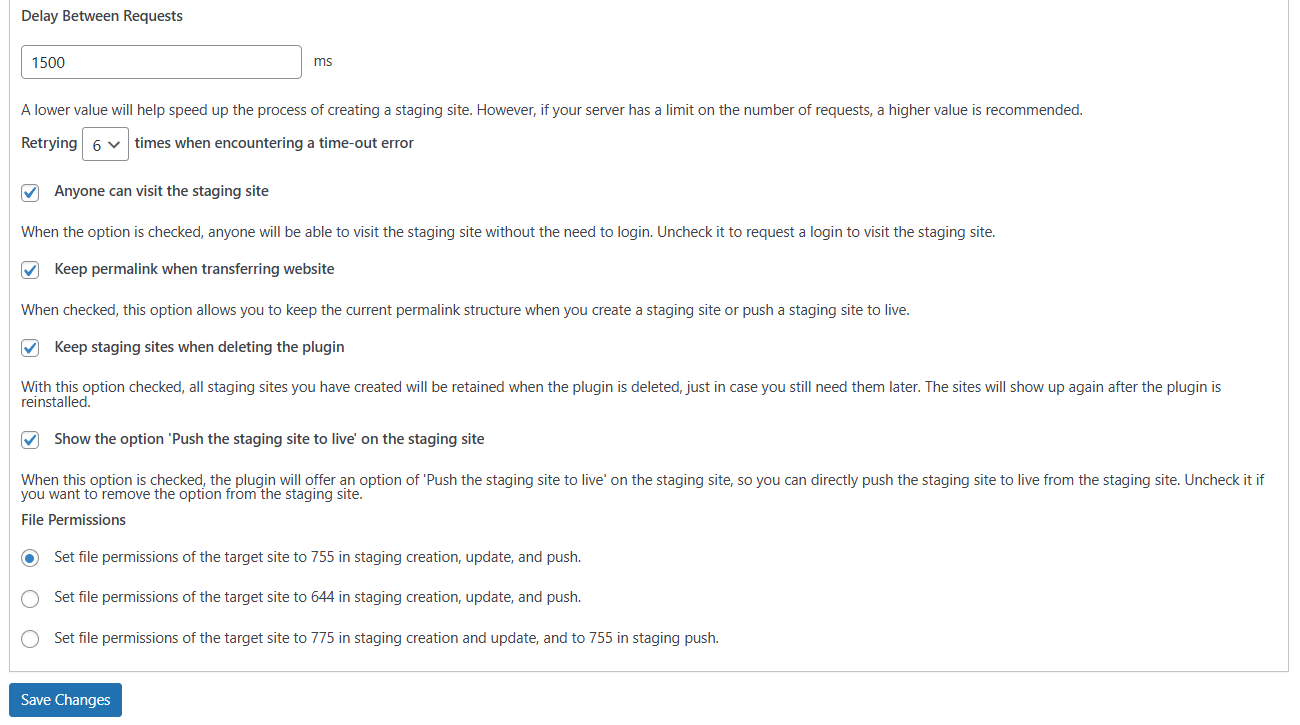
The Staging Settings page in WPvivid Staging Pro allows you to fine-tune how staging sites are created, updated, and pushed to live. These settings are especially useful when you encounter issues such as timeouts, memory errors, or server limitations during staging operations.
You can adjust database processing, file copying behavior, execution limits, access rules, and file permissions to improve reliability and compatibility with your hosting environment.
When to Configure Staging Settings
You may want to adjust these settings if:
- 1. Staging creation fails or times out.
- 2. Large databases or file libraries are involved.
- 3. Your server has strict PHP memory or execution limits.
- 4. You need to control access or behavior of staging sites.
1. Performance and Resource Tuning
Adjust these settings if you experience timeout errors or server resource exhaustion during staging operations.
- 1. DB Copy Count:
Defines the number of database rows copied per AJAX query. Higher values speed up the process, but you should lower this value if you encounter timeout errors. - 2. DB Replace Count:
Sets the number of database rows processed per AJAX query for search-and-replace tasks. Decrease this value if you face memory issues or timeouts. - 3. File Copy Count:
Sets the number of files copied per AJAX request. If the process fails due to timeouts, try a lower value. - 4. Max File Size:
The maximum size for individual files to be copied. Set this to 0 MB to ensure all files, regardless of size, are included in the staging site. - 5. Staging Memory Limit:
Sets a temporary PHP memory limit specifically for staging tasks. If you see “memory exhausted” errors, increase this value (default is 256MB). - 6. PHP Script Execution Timeout:
This is a plugin-specific timeout setting, independent of your server’s global PHP timeout. Increase this value if you have a large site that triggers timeouts. - 7. Delay Between Requests:
Adds a pause between AJAX requests. A higher value (in milliseconds) is recommended if your server enforces rate limits on requests. - 8. Retrying Times:
Determines how many times the plugin will automatically attempt to resume a task after encountering a timeout error.
2. General Staging Options
These settings control site accessibility and plugin behavior during deletion.
- 1. Anyone can visit the staging site:
When enabled, the staging site is public. Uncheck this to require a login before anyone can view the staging environment. - 2. Keep permalink when transferring website:
Ensures the current URL structure remains consistent when creating a staging site or pushing changes to your live site. - 3. Keep staging sites when deleting the plugin:
If checked, your staging sites will not be deleted if you uninstall WPvivid. They will automatically reappear if the plugin is reinstalled later. - 4. Show ‘Push the staging site to live’ on the staging site:
Adds a shortcut button on the staging site’s dashboard, allowing you to push changes back to the live site directly from the staging environment.
3. File Permissions
This section allows you to define the specific permission levels applied to the target site during creation, updates, or pushing to live.
- 1. Available options allow you to choose appropriate permissions (such as 755 or 644) depending on your server’s security and write-access requirements.
- 2. Proper configuration ensures a balance between site security and the necessary write access required for staging workflows.
Click Save Changes to apply your settings.
Tips
1. Start with default values, then adjust only if errors occur.
2. Lower DB and file counts when facing timeout issues.
3. Increase memory and execution limits for large sites.
4. Use retry and delay settings on shared or restricted hosting.
5. Review file permissions carefully to avoid permission-related failures.
1. Start with default values, then adjust only if errors occur.
2. Lower DB and file counts when facing timeout issues.
3. Increase memory and execution limits for large sites.
4. Use retry and delay settings on shared or restricted hosting.
5. Review file permissions carefully to avoid permission-related failures.