


This guide explains how to configure WPvivid Backup & Migration Pro to store backups on WebDAV-compatible servers, including connection setup, folder organization, and best practices for various WebDAV providers.
What Is WebDAV Integration?
WPvivid Backup & Migration Pro integrates with WebDAV (Web Distributed Authoring and Versioning) to store backups on self-hosted servers, private cloud environments, or any WebDAV-compatible storage service.
You can define custom folders for each website within the same WebDAV account to keep backups well organized.
Path Example:
- 1.
.../wpvividbackuppro/site_a_com/ - 2.
.../wpvividbackuppro/site_b_com/
Configuration Steps
1. Access Remote Storage Settings
- 1. Log in to your WordPress admin dashboard.
- 2. Navigate to WPvivid Plugin → Cloud Storage.
- 3. Select WebDAV from the list of available storage providers.
2. Enter WebDAV Server Information
Provide the connection details for your WebDAV server.
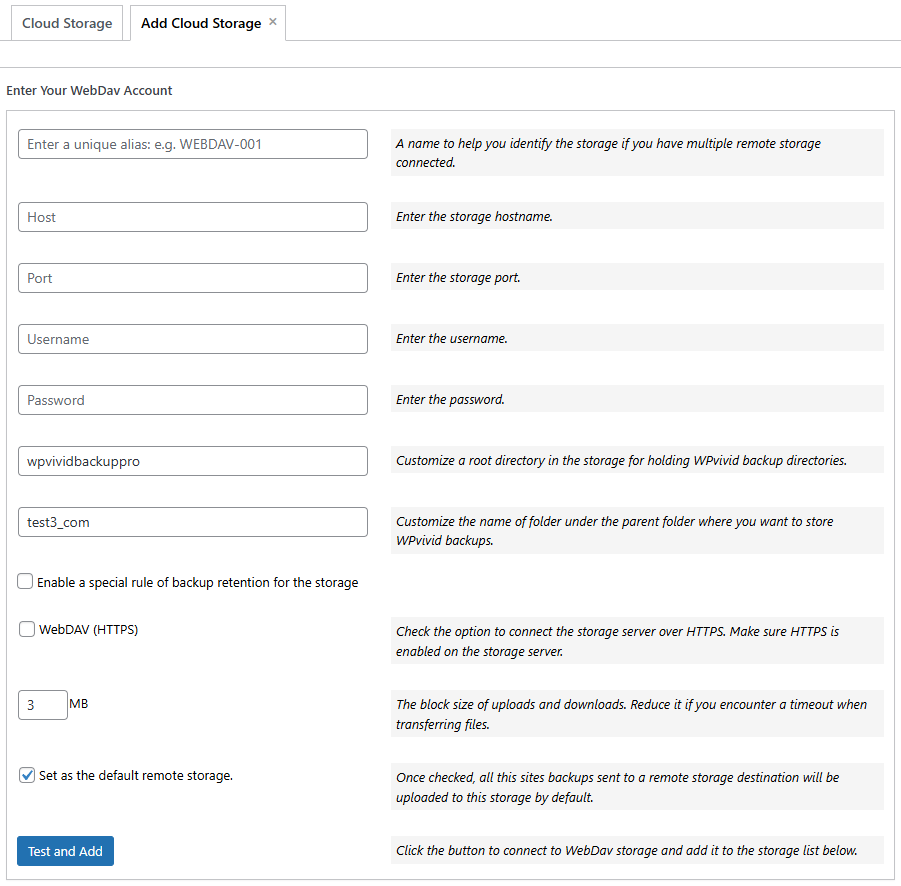
- 1. Unique Alias:
Enter a recognizable name for this storage connection (e.g.,WebDAV-NAS). - 2. WebDAV Host/Port:
Enter the full WebDAV hostname and port. - 3. Username:
Enter the username used to authenticate with the WebDAV server. - 4. Password:
Enter the corresponding password or application-specific password. - 5. Custom Parent Folder:
Define a parent folder on the WebDAV server for storing WPvivid backups (e.g.,wpvividbackuppro). - 6. Custom Subfolder:
Enter a unique folder name for the current website (e.g.,yourdomain_com). - 7. Backup Retention:
Specify how many backup copies to keep on the WebDAV server. Older backups will be removed automatically. - 8. Enable WebDAV(HTTPS):
Enable connection to the storage server over HTTPS. Make sure HTTPS is enabled on the storage server. - 9. Upload Block Size:
Set the block size for uploads and downloads. Reduce this value if you experience timeouts or unstable connections. - 10. Set as Default Storage:
Enable this option to use WebDAV as the default destination for all backups. - 11. Save and Connect
Click Add Now to save the settings. WPvivid will test the connection and folder permissions. Once verified, the WebDAV storage will appear in the remote storage list.
Best Practices
- Use HTTPS-based WebDAV endpoints whenever possible for secure data transfer.
- Ensure the WebDAV account has read/write permissions for the target directory.
- Assign a unique subfolder for each website to avoid conflicts.
- Reduce the upload block size if backups fail due to server or network limits.
Common WebDAV Providers
- Nextcloud
- ownCloud
- Synology NAS
- QNAP NAS
- Custom WebDAV servers