


WPvivid Backup Pro supports S3 Compatible Storage, allowing you to store WordPress backups on cloud storage services that implement the Amazon S3 API, such as Amazon S3, Wasabi, DigitalOcean Spaces, and other S3-compatible providers.
What Is S3 Compatible Storage Integration?
S3 compatible storage refers to cloud storage services that support the Amazon S3 API. While Amazon S3 is the most well-known implementation, many third-party providers offer S3-compatible endpoints with different pricing models and regional availability.
WPvivid Backup & Migration Pro connects to these services using access credentials and an endpoint URL, enabling secure upload, download, and management of backup files. You can define custom folders for each website within the same storage account to keep backups well organized.
Path Example:
- 1.
.../wpvividbackuppro/site_a_com/ - 2.
.../wpvividbackuppro/site_b_com/
Configuration Steps
1. Access Remote Storage Settings
- 1. Log in to your WordPress admin dashboard.
- 2. Navigate to WPvivid Plugin → CloudStorage.
- 3. Select S3 Compatible Storage from the list of available storage providers.
2. Enter S3 Storage Credentials
Provide the authentication and connection information for your S3-compatible storage service.
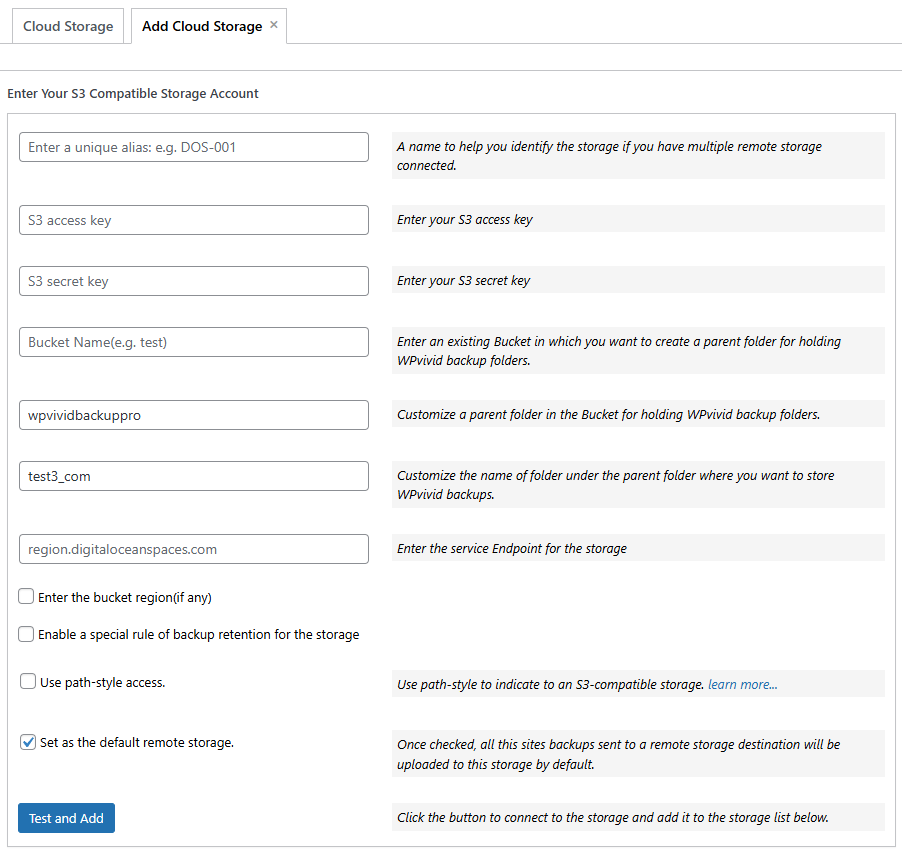
- 1. Unique Alias:
Enter a recognizable name for this storage connection (e.g.,S3-Wasabi). - 2. Access Key ID:
Enter your S3 access key ID. - 3. Secret Access Key:
Enter the corresponding secret access key. - 4. Bucket Name:
Enter an existing bucket where WPvivid backups will be stored. - 5. Custom Parent Folder:
Define a parent folder inside the bucket for holding WPvivid backup folders (e.g.,wpvividbackuppro). - 6. Custom Subfolder:
Enter a unique folder name for the current website (e.g.,yourdomain_com). - 7. Endpoint URL:
Enter the endpoint URL provided by your storage service (e.g.,s3.us-east-1.amazonaws.com). - 8. Region:
Specify the region associated with your storage service, if required. - 9. Use Path-Style Access:
Enable the path-style option when your storage provider only supports path-style to avoid ‘could not resolve host’ error. - 10. Backup Retention:
Specify how many backup copies to keep in the bucket. Older backups will be automatically deleted once the limit is reached. - 11. Set as Default Remote Storage:
Enable this option to make this S3-compatible storage the default destination for all backups. - 12. Save and Connect:
Click Add Now to save the configuration. Once connected successfully, the storage will appear in the remote storage list.
Common S3 Compatible Providers
- DigitalOcean Spaces
- Linode Object Storage
- Wasabi
- MinIO
- Other third-party S3-compatible storage services
Best Practices
- Use IAM credentials with limited permissions for better security.
- Enable HTTPS endpoints to protect data in transit.
- Use unique subfolders for each website to avoid file conflicts.
- Monitor storage usage and lifecycle rules on the provider side.