


Local Server Storage vs Cloud Storage
WPvivid supports both local server storage and remote cloud storage for backup files. Understanding the difference helps you choose the most reliable backup strategy.
- Local Server Storage
Backup files are stored on the same server where your website is hosted. While convenient, local backups may be lost if the server experiences hardware failure, malware infection, or accidental deletion. - Remote Storage
Backup files are stored on external cloud platforms or remote servers. This provides offsite protection and ensures your backups remain accessible even if your website server becomes unavailable.
For maximum data protection, always keep at least one backup copy stored in cloud storage in addition to any local backups.
How Remote Storage Works in WPvivid
WPvivid Remote Storage works by securely connecting your cloud storage account or remote server to your WordPress site and assigning it as a backup destination.
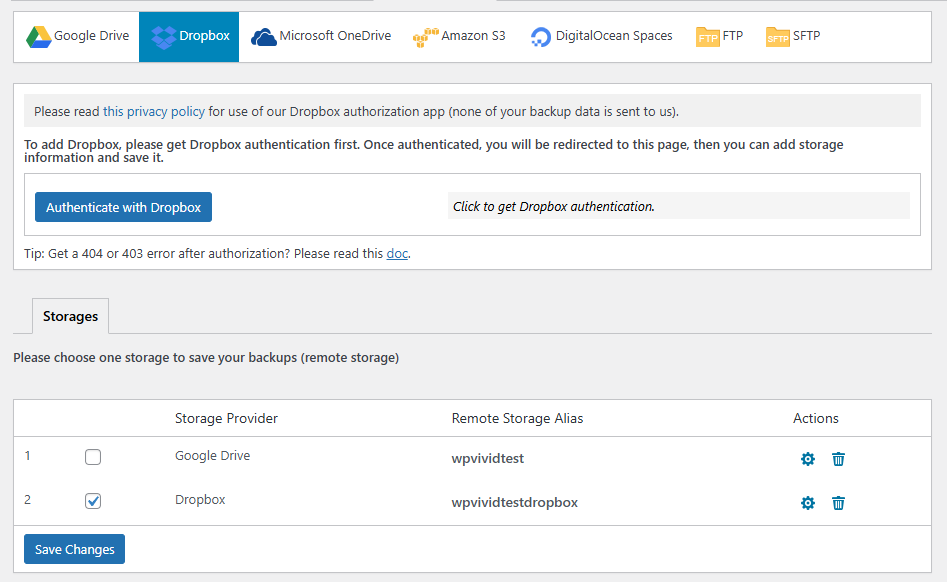
The typical workflow includes:
- 1. Authenticate and connect your remote storage account inside WPvivid settings
- 2. Select the connected storage as a backup destination
- 3. Create manual backups or schedule automatic backups
- 4. Backup files are generated locally first
- 5. Completed backups are automatically uploaded to the selected remote storage
Once configured, WPvivid automatically handles file transfers without requiring manual uploads.
Remote storage destinations can be assigned individually to different backup schedules or manual backup tasks.
Supported Remote Storage Providers
WPvivid supports multiple popular cloud platforms and remote storage services, allowing you to choose a provider based on storage capacity, performance, or regional availability.
Available integrations include:
- Google Drive
- Dropbox
- Microsoft OneDrive
- Amazon S3
- DigitalOcean Spaces
- FTP / SFTP Servers
Security and Data Protection
WPvivid remote storage connections are designed with security and data integrity in mind. These measures help ensure your backup files remain protected during transfer and storage. Security features include:
- Secure API-based authentication for cloud providers
- Protected storage of authentication credentials
- Controlled access to backup files based on configured permissions
Best Practices for Using Remote Storage
To ensure reliable offsite backups and long-term data safety, it is recommended to follow these best practices:
- Use at least one remote storage destination in addition to local backups
- Monitor available cloud storage space to prevent upload failures
- Test backup restoration from remote storage periodically
- Combine scheduled backups with remote storage to maintain consistent protection
For business-critical websites, you may want to consider using multiple cloud storage destinations (which is a pro version feature) to improve redundancy and fault tolerance.