


This guide explains how WordPress Multisite migration works in WPvivid Backup & Migration Pro. It covers supported multisite migration scenarios, how multisite migration is performed, current limitations, and best practices for migrating multisite networks safely and reliably.
Supported Multisite Migration Scope
Currently, WPvivid Backup & Migration Pro supports migration of full multisite network that uses a subdirectory structure, or migration of a subsite in a multisite network to a single-site WordPress installation.
Supported Migration Type
WPvivid Backup & Migration Pro supports the following multisite migration scenario:
- Full Network Migration
Migrates the entire multisite environment, including all subsites, network settings, plugins, themes, uploads, and database tables. - Multisite Subsite to Single-Site Migration
Migrates a subsite in a multisite network to a standalone WordPress installation.
Unsupported Migration Scenarios (Current Limitation)
The following migration scenarios are not supported in the current version:
- Migration Between Subsites
Migration between individual subsites in the same or different multisite networks is not supported. - Subdomain Multisite Migration
Multisite networks using subdomain structures are not supported. - Single-Site to Multisite Migration
Migrating a single-site WordPress installation to a multisite network is not supported.
Before Migration
Before starting a multisite migration, ensure the following conditions are met:
- Network Compatibility
A fresh WordPress multisite installation that uses subdirectory structure is set up on the destination site - WPvivid Activation
WPvivid Backup & Migration Pro is installed and activated in Network Admin of both multisite networks
How to Migrate a WordPress Multisite Network
Follow these steps to migrate a complete WordPress Multisite networks.
Note
This guide demonstrates the manual migration method, which is the most stable approach for multisite network migration. You can also use auto migration or remote storage migration methods as needed.
This guide demonstrates the manual migration method, which is the most stable approach for multisite network migration. You can also use auto migration or remote storage migration methods as needed.
Step 1: Export from Source Site
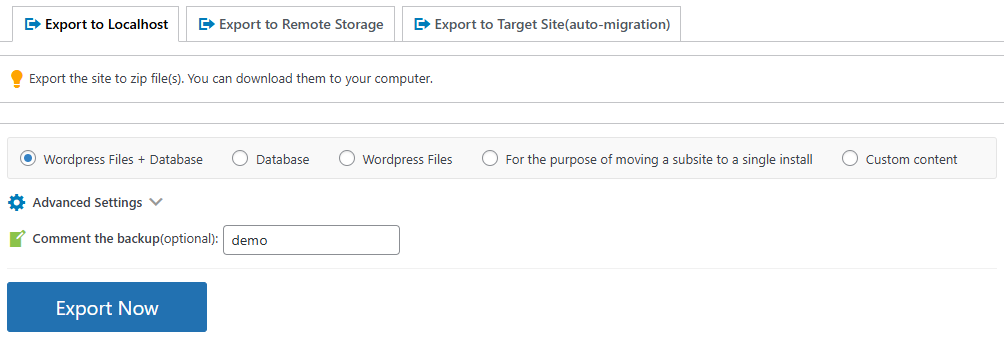
- Go to the source site’s Network Admin.
- In WPvivid Plugin → Export Site, choose Export to Localhost (Web Server).
- Select the content you want to migrate.
- Optionally add a comment for identification.
- Click Export Now.
Step 2: Download Export Files
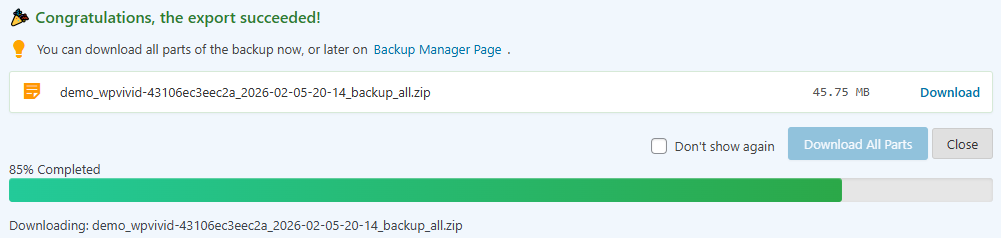
- After the export completes, click Download Now to download all backup files to your computer.
- Keep all downloaded files together in the same location.
Step 3: Upload to Target Site
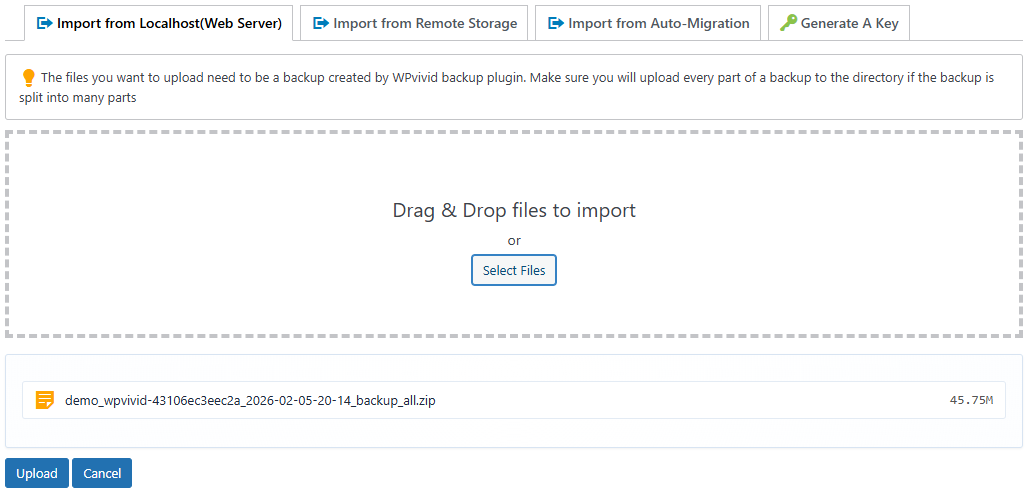
- Go to the target site’s Network Admin.
- In WPvivid Plugin → Import Site, choose Import from Localhost (Web Server).
- Click Select Files or drag and drop all exported ZIP files into the upload field.
- Ensure all parts are uploaded at the same time if the backup is split into multiple files.
- Click Upload.
Step 4: Restore the Multisite Network

- After successful upload, you will see a successful message.
- Click Restore Now in the successful message to complete the migration.
- Wait for the restoration to finish.
Tip
After migration completes, verify network settings, clear all caches, and test critical functionality across all subsites. Check that permalinks, domain mappings, and network-wide plugins are configured correctly.
After migration completes, verify network settings, clear all caches, and test critical functionality across all subsites. Check that permalinks, domain mappings, and network-wide plugins are configured correctly.
Best Practices for Multisite Migration
For a successful and safe multisite migration, follow these best practices:
- Keep Source Site Active
Do not delete or modify the source site until you have fully verified the migration was successful and all subsites are functioning correctly on the target site. - Ensure Sufficient Server Resources
Verify the destination site has adequate disk space, memory, and bandwidth to handle the entire multisite network. Large networks require substantial storage for all subsites’ files and databases. - Use Fresh Multisite Installation
Always migrate to a fresh WordPress Multisite installation to avoid compatibility issues, conflicts, and data corruption. The target site should be a clean multisite setup with no existing subsites or content. - Match Server Environments
Ensure both source and destination sites use compatible versions of WordPress, PHP, and MySQL/MariaDB. Version mismatches can cause migration failures or functionality issues. - Temporarily Disable Security Plugins
Deactivate security plugins like Wordfence before migration, as they may write absolute paths that interfere with the migration process.