


This guide provides step-by-step instructions on how to activate and deactivate WPvivid Backup Pro on your WordPress site.
How to Activate WPvivid Backup Pro License
To activate your WPvivid Backup Pro license, follow these steps:
Step 1: Access WPvivid My Account Dashboard
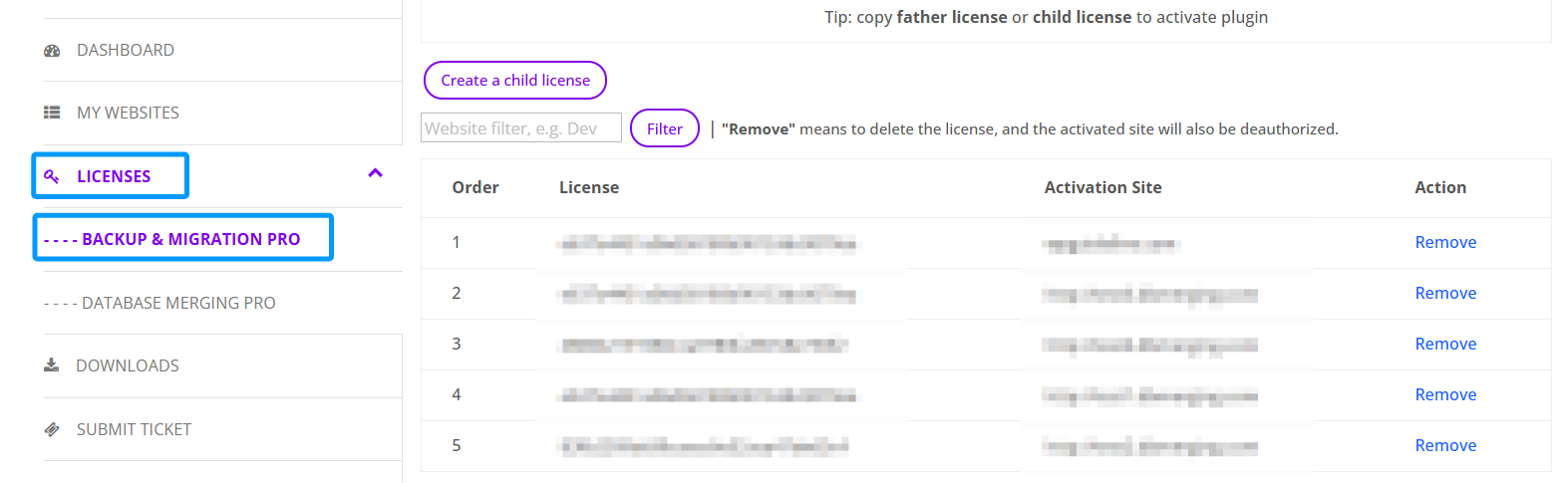
- 1. Go to the WPvivid My Account dashboard by logging into your WPvivid account.
- 2. On the dashboard, locate the Licenses section.
- 3. From the Licenses submenu, select BACKUP & MIGRATION PRO.
Step 2: Copy the Father License or Create a Child License
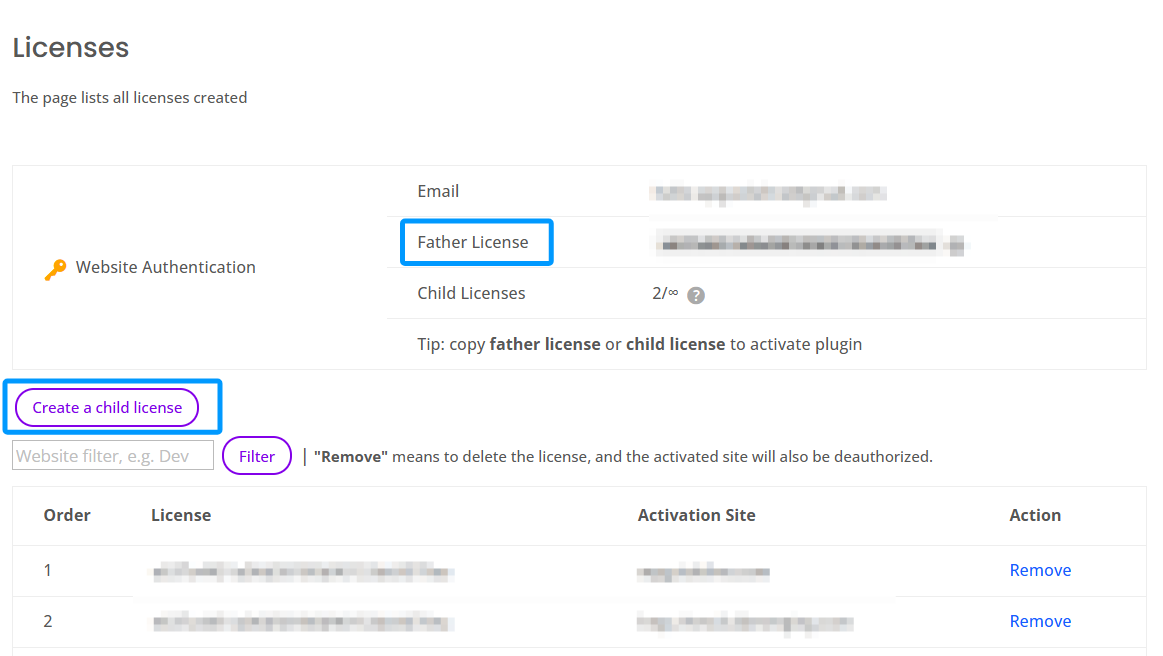
- 1. In the Licenses section, you’ll see the Father License that is associated with your WPvivid Backup Pro account.
- 2. You can either:
Copy the Father License, or
Create a Child License by clicking the Create a Child License button.
Note
The Father license serves as the main license for all your sites, while Child licenses are used for individual website activations.
The Father license serves as the main license for all your sites, while Child licenses are used for individual website activations.
Step 3: Paste the License into Your WordPress Site
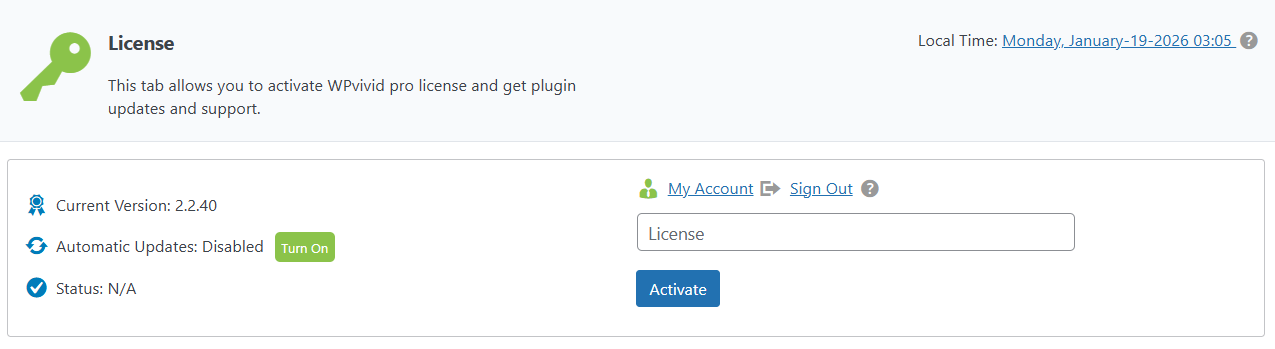
- 1. Once you have the license key, go to your WordPress site where WPvivid Backup Pro is installed.
- 2. Navigate to WPvivid plugin → the License page.
- 3. Paste the copied Father License or Child License key into the license field.
- 4. Click Activate to enable WPvivid Backup Pro on your site.
How to Deactivate WPvivid Backup Pro License
To deactivate your WPvivid Backup Pro license, follow these steps:
Step 1: Sign Out the License from the Website
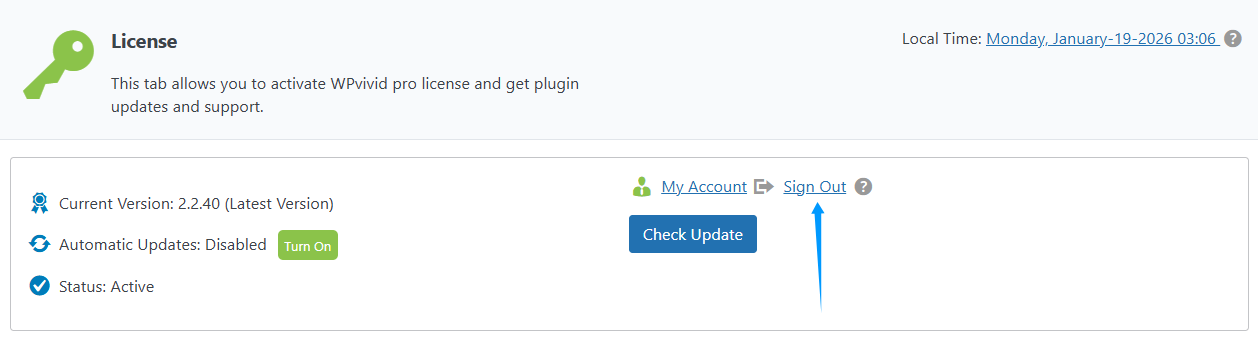
- 1. Log in to your WordPress site where the license is activated.
- 2. Navigate to the License page in the WPvivid Backup Pro plugin.
- 3. Click Sign Out to sign out the license from the current website.
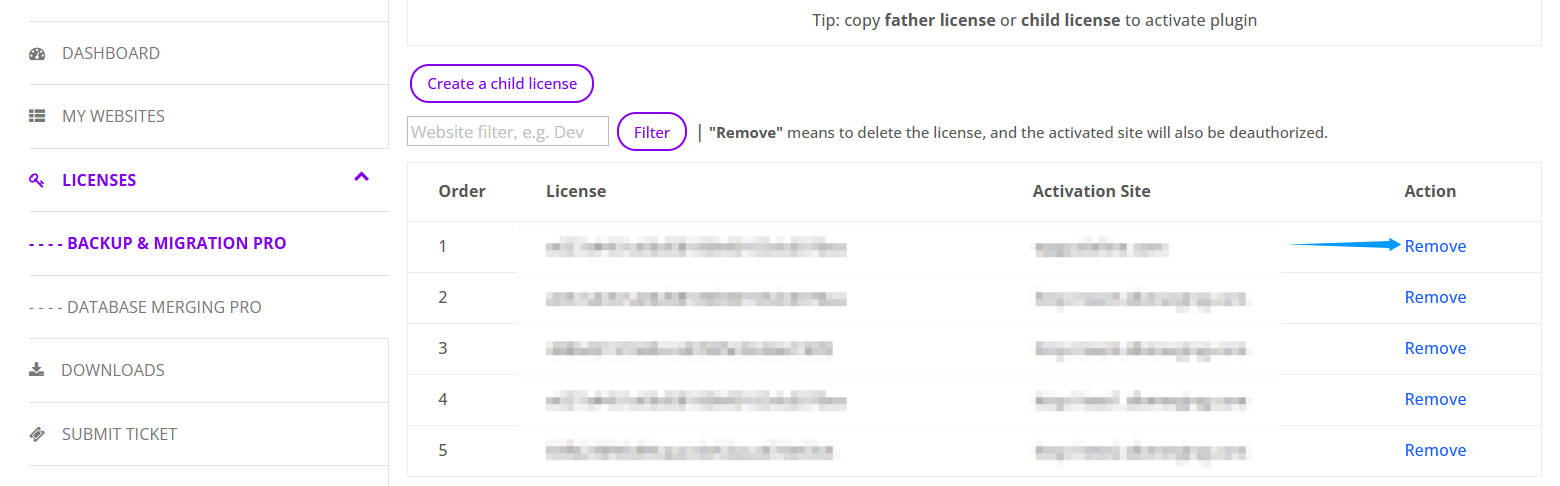
Step 2: Remove the Website Domain Name from the Activation Website List
- 1. Go back to the WPvivid My Account Dashboard.
- 2. Navigate to the Licenses page to view the list of websites where WPvivid Backup Pro is currently activated.
- 3. Locate the website domain that you want to deactivate and click Remove.
- 4. The domain will be removed from the list, and the site will no longer be activated.
Recommendations
1. Activate: Always use the most appropriate license (Father or Child) for each site to ensure seamless activation. Typically, Child licenses are used when activating WPvivid Backup Pro on client websites.
2. Deactivate: Deactivate licenses from websites you no longer wish to have WPvivid Backup Pro activated on.
1. Activate: Always use the most appropriate license (Father or Child) for each site to ensure seamless activation. Typically, Child licenses are used when activating WPvivid Backup Pro on client websites.
2. Deactivate: Deactivate licenses from websites you no longer wish to have WPvivid Backup Pro activated on.