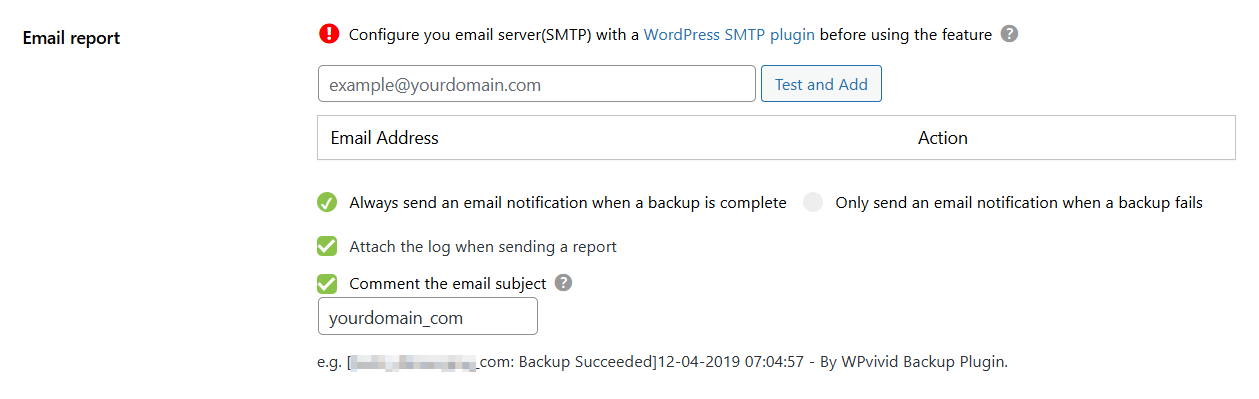
WPvivid Backup Pro includes a built-in email reporting system that keeps you informed about the status of your backup tasks. Whether a backup completes successfully or encounters an error, you can receive automated notifications to ensure your site’s data remains protected.
Configuration Steps
1. Access Email Report Settings
- 1. Log in to your WordPress admin dashboard.
- 2. Navigate to WPvivid Plugin > Settings.
- 3. Click on the Backup tab and locate the Email Report section.
2. Configure Notification Preferences
You can customize how and when you receive reports using the following options:
- 1. Email Recipients:
Enter the email addresses that should receive the reports. You can configure multiple addresses by separating them with a comma. - 2. Notification Triggers:
Always send an email: Receive a notification every time a backup task finishes, regardless of the outcome.
Only send on failure: Only receive an email if a backup task fails. This is ideal for reducing inbox clutter on healthy sites. - 3. Email Subject Customization:
Add a custom comment or prefix to the email subject line. This is particularly useful for identifying which website the report is coming from (e.g., [Production Site] Backup Report). - 4. Attach Backup Log:
Enable this option to automatically attach the process log to the email. This is highly recommended for troubleshooting failed tasks without needing to log in to the site.
3. Save Your Changes
- 1. Once you have configured your preferences, click Save Changes at the bottom of the page.
4. Email Delivery Requirements
To receive email reports reliably:
- 1. Your WordPress site must be capable of sending emails (SMTP or PHP mail support).
- 2. If your server does not support PHP mail, you may need to configure SMTP via a plugin (e.g., WP Mail SMTP).
Ensuring reliable email delivery enhances the usefulness of email reporting.
Recommendations
1. If you manage multiple sites, always use the Email Subject field to include the site name. This helps you quickly filter and organize notifications in your inbox.
2. If you choose the Only send on failure option, always enable Attach the log. This ensures you have the diagnostic information ready to send to our support team immediately.
1. If you manage multiple sites, always use the Email Subject field to include the site name. This helps you quickly filter and organize notifications in your inbox.
2. If you choose the Only send on failure option, always enable Attach the log. This ensures you have the diagnostic information ready to send to our support team immediately.