


What is the Debug Page
The Debug page in WPvivid Backup Pro provides a centralized view of your website’s environment, server configuration, and system runtime parameters. This information is primarily used for diagnostics, compatibility validation, and performance troubleshooting during backup, migration, and restore operations.
Common Use Cases
The Debug page is commonly used in the following scenarios:
- Investigating backup or migration failures
- Validating server environment compatibility
- Preparing diagnostic reports for technical support
- Auditing hosting resource limits before large backup operations
Accessing Debug Information
To access the Debug panel in WPvivid Backup Pro:
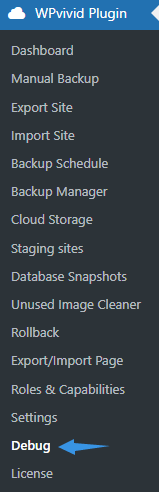
- Navigate to WPvivid Backup Pro → Debug
- The Debug Information table will be displayed automatically.
Understanding Debug Information
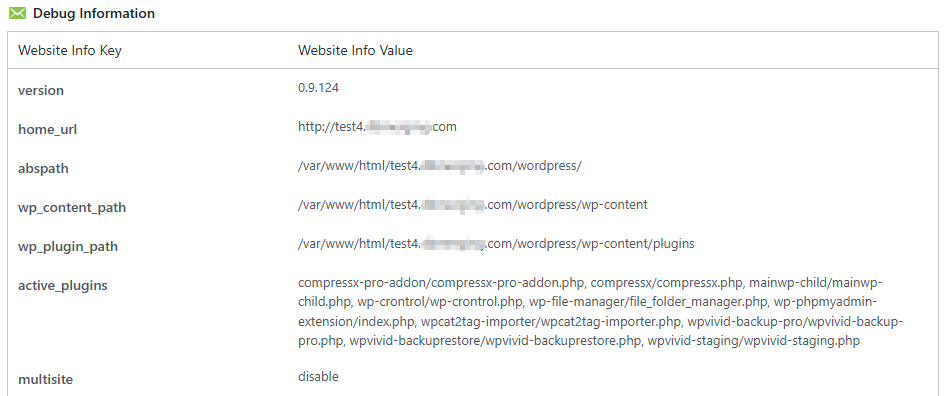
The Debug Information table is divided into multiple logical sections that reflect your WordPress installation, hosting environment, and runtime configuration.
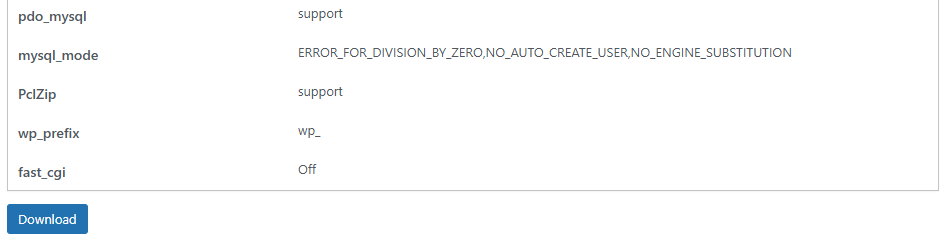
Website Information
Displays core website and WPvivid plugin configuration details.
- version
Shows the currently installed WPvivid Backup Plugin version. - home_url
Displays the website home URL configured in WordPress. - abspath
Shows the absolute path to the WordPress root directory. - wp_content_path
Displays the full server path to the wp-content directory. - wp_plugin_path
Shows the directory path where WordPress plugins are installed. - wp_prefix
Displays the database table prefix used by the WordPress installation.
Server Environment Information
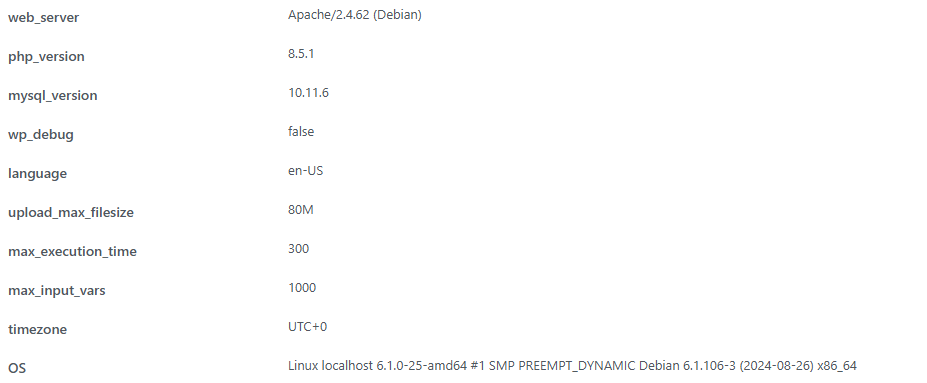
Provides details about the hosting server and operating system environment.
- web_server
Displays the web server software and version running on the host. - OS
Shows the operating system and kernel information of the server. - fast_cgi
Indicates whether FastCGI processing is enabled.
PHP Environment Configuration
Displays PHP runtime configuration values that affect backup and migration performance.
- php_version
Shows the current PHP version running on the server. - max_execution_time
Displays the maximum allowed script execution time. - max_input_vars
Shows the maximum number of input variables PHP can process. - upload_max_filesize
Defines the maximum file upload size allowed by PHP. - post_max_size
Displays the maximum POST request size limit. - allow_url_fopen
Indicates whether remote file access is enabled.
Database Environment Information
Provides details about the database engine and database driver support.
- mysql_version
Displays the MySQL or MariaDB server version. - pdo_mysql
Indicates whether the PDO MySQL extension is supported. - mysql_mode
Shows the active SQL operation mode configuration.
WordPress Environment Settings
Displays WordPress runtime configuration parameters.
- multisite
Indicates whether WordPress Multisite mode is enabled. - language
Shows the site language setting. - wp_debug
Displays the WordPress debug mode status. - timezone
Shows the WordPress timezone configuration.
Active Plugins Information
Displays a list of all active plugins currently enabled on the website.
- active_plugins
Lists plugin directories and main plugin files currently loaded by WordPress.
This information is useful when diagnosing compatibility issues or identifying plugin conflicts.
System Resource Usage
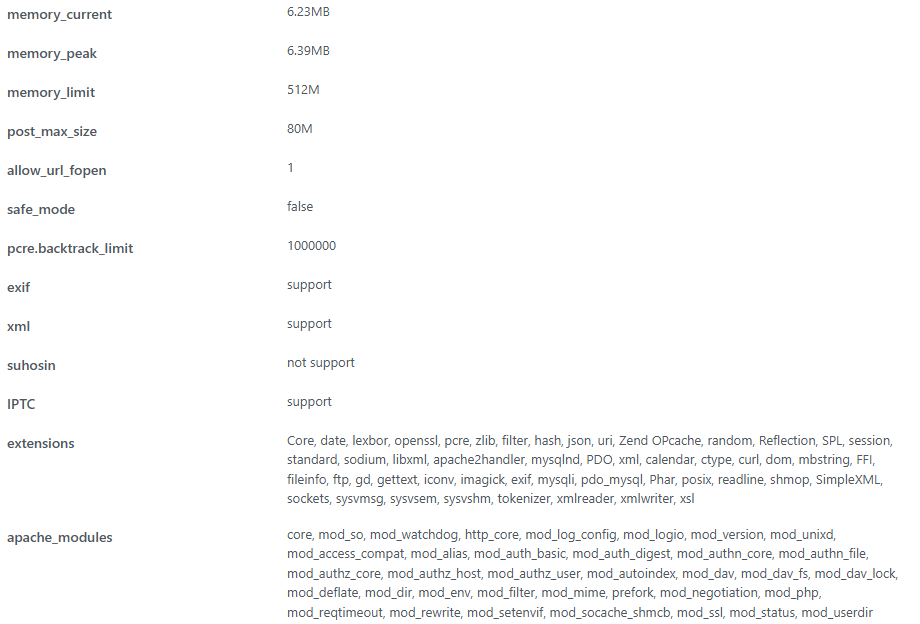
Displays PHP memory allocation and runtime usage information.
- memory_limit
Shows the PHP memory limit assigned to the website. - memory_current
Displays the current memory usage. - memory_peak
Shows the highest memory usage reached during execution.
Server Extensions and Modules
Displays enabled PHP extensions and web server modules required for WPvivid operations.
- extensions
Lists all active PHP extensions. - apache_modules
Displays enabled Apache server modules. - PclZip
Indicates availability of the ZIP compression fallback library.
Downloading Debug Information
WPvivid Backup Pro allows exporting Debug Information for support and diagnostics.
To download debug data:
- Scroll to the bottom of the Debug page.
- Click the Download button.
- A debug report file will be generated and saved locally.
This file can be provided to WPvivid support for further investigation.
Security and Privacy Considerations
The Debug page displays sensitive system information including server paths, environment configuration, and plugin lists.
For security reasons:
- Do not share debug exports publicly
- Only provide debug files to WPvivid official support
- Store downloaded debug files securely
Proper handling of debug information helps prevent unintended exposure of server configuration data.