


When to Create Manual Backups
Manual backups are recommended before performing any major website changes, including:
- Before updating WordPress core, themes, or plugins
- Before editing website files or database records
- Before testing major changes or new features
- Before migrating your website
- When creating a one-time restore point
Even if you use scheduled backups, creating a manual backup before critical changes provides an additional layer of protection.
How to Create a Manual Backup
Before get started:
- Navigate to WPvivid Backup Plugin → Backup & Restore
- Make sure you are on the Backup & Restore tab
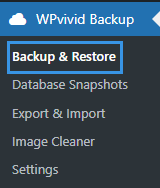
Follow the steps below to create a manual backup using WPvivid Backup & Migration Free.
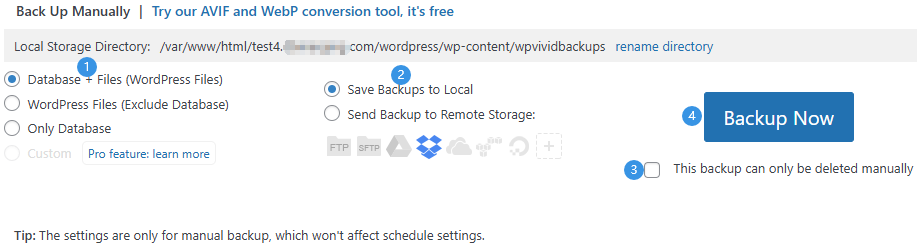
Step 1: Choose Backup Content
Select the content you want to include in the backup:
- Database + Files (WordPress Files)
Creates a full website backup. Recommended for most users. - WordPress Files (Exclude Database)
Backs up only site files without database data. - Only Database
Backs up only your WordPress database.
Step 2: Select Backup Storage Location
Choose where the backup will be stored:
- Save Backups to Local
Stores the backup on your web server inside the WPvivid backup directory. - Send Backup to Remote Storage
Uploads the backup to configured cloud storage such as Google Drive, Dropbox, Amazon S3, FTP/SFTP, and other supported remote destinations.
Remote storage destinations must be configured in the Remote Storage tab before they can be selected here.
Step 3: Optional — Enable Manual Delete Protection
You can enable the option:
- This backup can only be deleted manually
Prevents this backup from being automatically removed by retention rules.
This option is useful for preserving important restore points.
Step 4: Start Manual Backup
Click the Backup Now button to start the backup process.
Step 5: Monitor Backup Progress
During the backup process, you will see real-time status information, including:

- Backup progress percentage
- Processed file size
- Transfer speed
- Current task status
You may close the browser tab or leave the page during the backup process. WPvivid will continue running the task in the background.
Step 6: Verify Backup Completion
Once the backup finishes successfully:
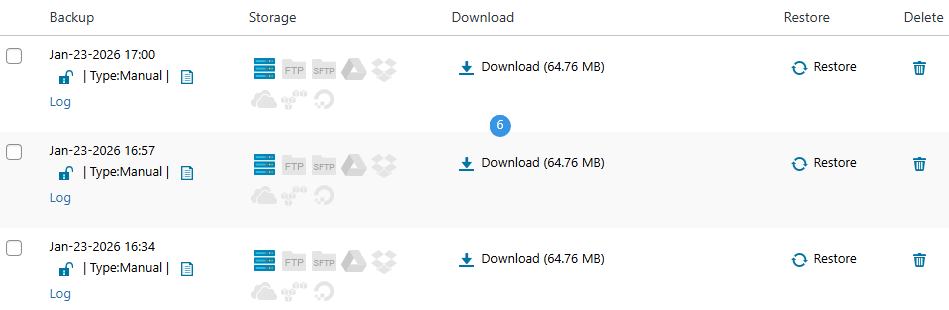
- A success notification will be displayed
- The backup will appear in the Backups list below
- You can download, restore, or manage the backup files
Troubleshooting Manual Backup Issues
If a manual backup fails, times out, or becomes stuck, try adjusting the WPvivid Advanced Settings according to the following documentation.
If the issue persists, please contact WPvivid support for further optimization guidance.