


Backup retention is a critical setting that determines how many backup copies are stored on your web server (Localhost) or Remote Storage. Once your defined limit is reached, WPvivid Backup Pro automatically deletes the oldest backup to make room for the new one.
In the Pro version, there is no technical limit to how many backups you can retain. You can store as many as your hardware or cloud storage capacity allows.
Localhost vs. Remote Storage Retention
WPvivid allows you to set independent retention rules for different storage locations. This flexibility ensures you can keep a few recent backups on your server for quick restoration while maintaining a larger archive on the cloud.
1. Configuring Localhost (Web Server) Retention
- 1. Navigate to WPvivid Plugin > Settings > Backup.
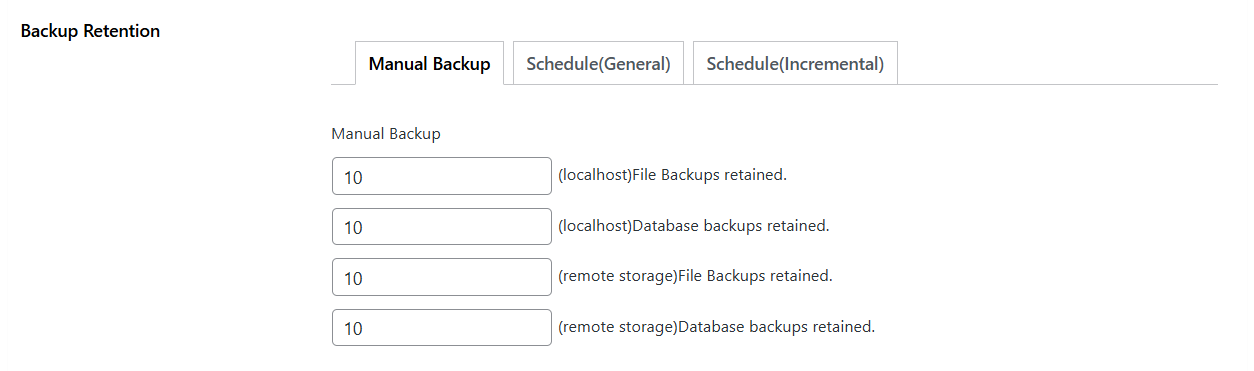
- 2. Locate the Backup Retention section.
- 3. Set individual limits for:
– Manual Backups: How many on-demand backups to keep.
– Schedule (Greneral) Backups: How many backups from your general schedule to keep.
– Schedule (Incremental) Backups: How many backups to retain from your incremental schedule.
2. Configuring Remote Storage Retention
Remote storage retention is managed at the connection level:
- 1. Go to the Cloud Storage tab.
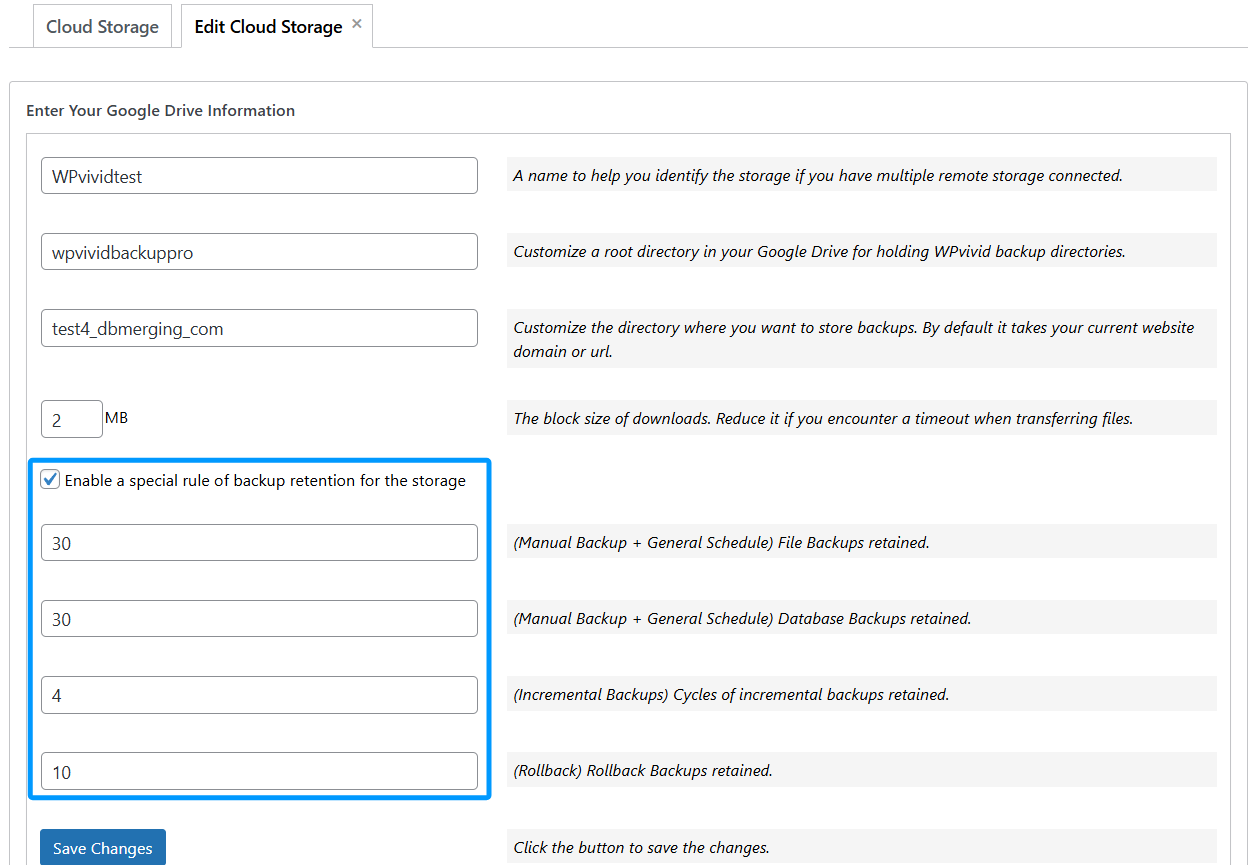
- 2. If adding a new storage, enter the retention number in the Backup Retention field during setup.
- 3. For existing storage, find your account in the Storage List, click the Gear (Edit) Icon, and update the retention value.
Backup Retention Control
WPvivid Backup Pro offers granular control, allowing you to set specific retention counts based on the content type of the backup:
- 1. Database Backups:
Set a separate retention count for database-only backups (which are small and can often be kept longer). - 2. File Backups:
Set retention for backups containing your WordPress files. - 3. Incremental Backups:
For incremental schedules, retention is defined by Cycles. One cycle typically includes one full backup and all subsequent incremental changes.
Managing Backup “Lock” Status
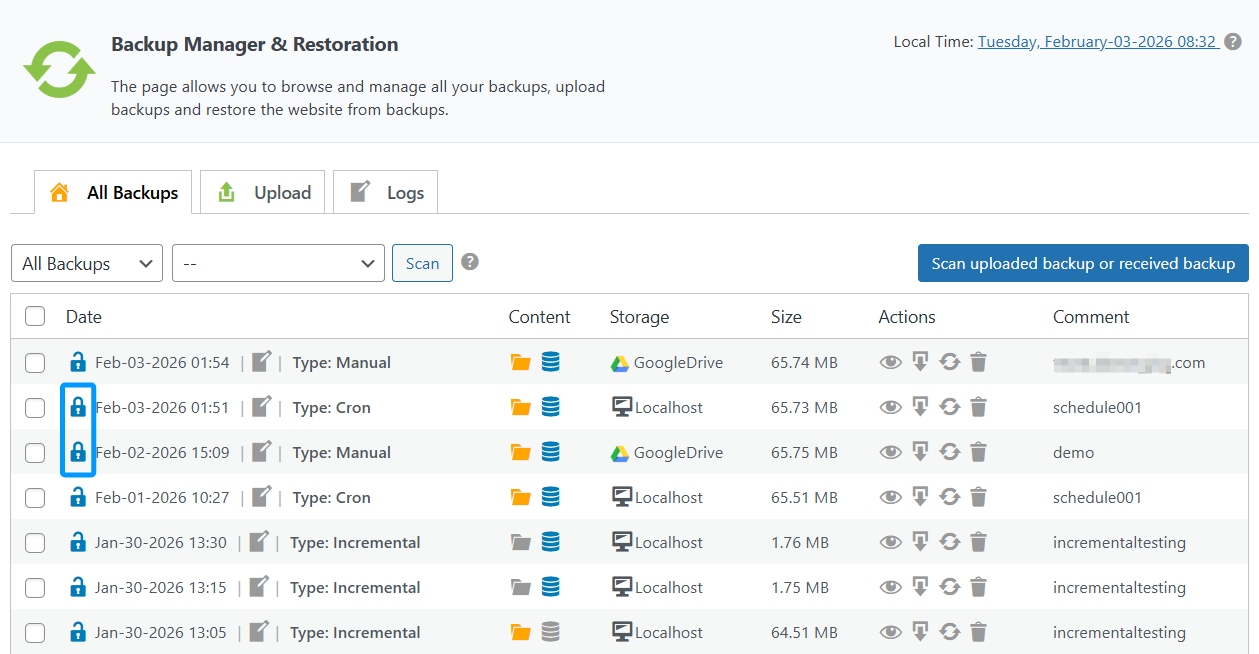
If you have a specific backup that you never want to be deleted by the automated retention system, you can Lock it.
- 1. How to Lock:
Go to the Backup Manager & Restoration tab, find your backup, and click the Lock icon. - 2. Effect:
Locked backups are ignored by the retention count and will remain in storage until you manually unlock or delete them.
Note
1. While the plugin has no limit on retention, your storage provider does. Frequently check your disk space to avoid backup failures caused by “Insufficient Storage Space.”
2. A common professional strategy is to keep 3 backups on Localhost (for speed) and 10–30 on Remote Storage (for safety).
3. Since database files are small, you can safely set a higher retention limit for them compared to full-site backups.
4. If you decrease your retention number (e.g., from 10 to 5), the plugin will automatically delete the extra 5 oldest backups during the next backup cycle.
1. While the plugin has no limit on retention, your storage provider does. Frequently check your disk space to avoid backup failures caused by “Insufficient Storage Space.”
2. A common professional strategy is to keep 3 backups on Localhost (for speed) and 10–30 on Remote Storage (for safety).
3. Since database files are small, you can safely set a higher retention limit for them compared to full-site backups.
4. If you decrease your retention number (e.g., from 10 to 5), the plugin will automatically delete the extra 5 oldest backups during the next backup cycle.