


What Is Multisite Backup
WPvivid Backup & Migration Pro provides basic backup support for WordPress Multisite networks, enabling administrators to create full backups of the entire multisite network environment, including all subsites, network data, and shared resources.
This feature is designed to protect complete multisite installations and simplify disaster recovery for network administrators.
Supported Multisite Configuration
Currently, WPvivid Backup & Migration Pro supports specific multisite setups.
Supported Network Type
WPvivid Backup & Migration Pro supports multisite networks that use the following structure:
- Subdirectory-based Multisite
Example format: example.com/site1
This configuration stores all subsites under the main domain using directory paths and is fully compatible with WPvivid’s multisite backup engine.
Unsupported Network Type (Current Limitation)
The following multisite configurations are not supported in the current version:
- Subdomain-based Multisite
Example format: site1.example.com
Where WPvivid Backup & Migration Pro Works in Multisite
In WordPress Multisite environments, WPvivid Backup & Migration Pro operates exclusively at the network administration level.
To access WPvivid Backup & Migration Pro in a multisite environment:
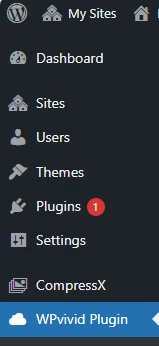
- 1. Open WordPress Admin.
- 2. Click My Sites → Network Admin.
- 3. Open WPvivid Plugin.
What Gets Backed Up in Multisite Mode
When performing a multisite backup, WPvivid Backup & Migration Pro creates a complete network-wide backup package.
The backup includes:
- Network Database Tables
All multisite database tables, including network settings and subsite data. - All Subsites Content
Posts, pages, media, users, and metadata from every site in the network. - Plugins and Themes
Network-activated and site-activated plugins and themes. - Uploads and Media Files
All media files stored across the multisite environment. - Core Site Files
Shared WordPress core files and configuration-related data.
Multisite backups are created as full network packages. It is not possible to back up only one subsite within a multisite network.
Backing Up a WordPress Multisite Network
WPvivid Backup & Migration Pro processes multisite backups at the network level.
Step 1: Accessing Multisite Backup Features
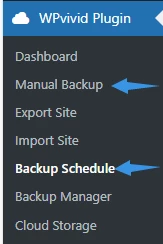
- 1. Navigate to My Sites → Network Admin → WPvivid Plugin.
- 2. Access either Manual Backup or Backup Schedule to configure network-wide backups.
Step 2: Creating a Manual Multisite Backup
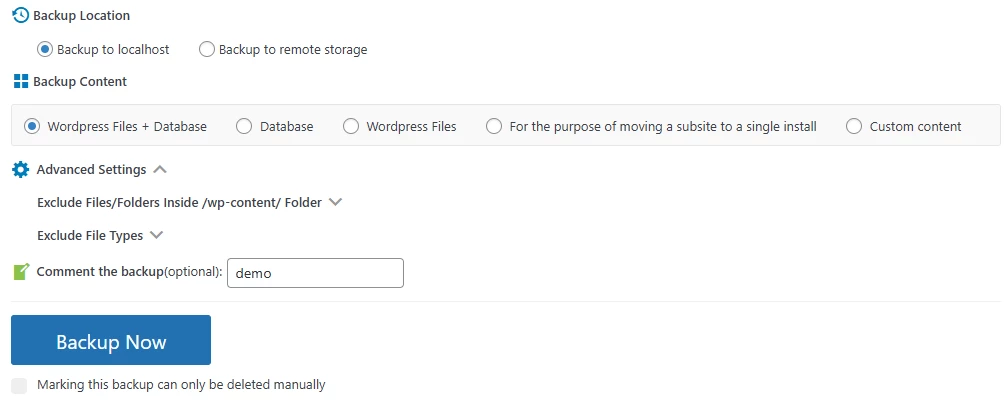
- 1. Go to Network Admin → WPvivid Plugin → Manual Backup.
- 2. Configure your backup settings including backup location and content type.
- 3. Optionally add a comment to identify the backup.
- 4. Click Backup Now to start the network backup process.
The backup will include all sites within the Multisite network along with their databases, themes, plugins, and uploaded content.
Step 3: Scheduling Multisite Backups
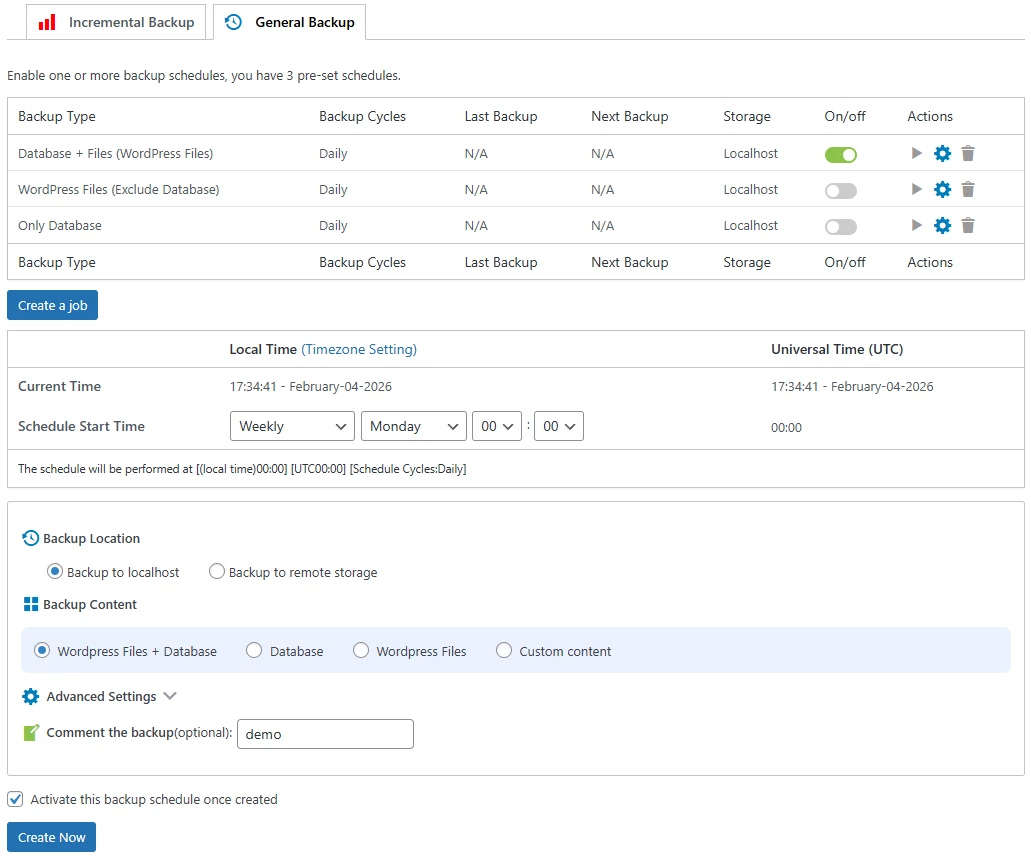
- 1. Go to Network Admin → WPvivid Plugin → Backup Schedule.
- 2. Choose between General Backup or Incremental Backup tabs.
- 3. Click Create a job to set up automated network backups.
- 4. Configure backup type, schedule frequency, and storage location.
- 5. Enable the schedule using the On/off toggle.
Scheduled backups will automatically back up your entire Multisite network according to the configured schedule.
Multisite network backups can be larger and take longer to complete than single site backups. Ensure your hosting environment has sufficient resources and storage space before initiating network-wide backup operations.
Known Limitations
Current multisite backup limitations include:
- Subdirectory Structure Only
Only subdirectory-based multisite networks are supported. Subdomain-based multisite configurations are not compatible. - Network Admin Access Required
Multisite operations must be managed from the Network Admin dashboard. Individual site administrators cannot access multisite backup features. - Network-Level Backups Only
Backing up individual subsites separately is not supported. All backups include the entire multisite network. - Selective Subsite Restore
Restoring a single subsite independently from a multisite backup is not supported. Restores apply to the entire network.
Best Practices for Multisite Backup
For reliable multisite protection, follow these best practices:
- Enable scheduled backups to maintain consistent recovery points.
- Store backups on remote cloud storage.
- Maintain multiple backup versions.
- Periodically test restore operations in a staging environment.
- Monitor backup logs for failed or incomplete tasks.