


What Is Logs Section
The Logs section in WPvivid Backup & Migration Pro provides a centralized activity history for all backup, restore, and migration operations. It helps administrators monitor task execution, troubleshoot issues, and verify successful operations.
Use Cases for Logs
Logs are useful for:
- Debugging performance or timeout issues
- Providing diagnostic information to support teams
- Identifying failed backup or migration tasks
- Auditing site backup activity
Accessing Logs
To view log records in WPvivid Backup & Migration Pro:
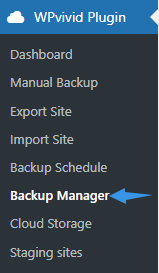
- Navigate to WPvivid Backup Pro → Backup Manager.
- Click the Logs tab.
The Logs interface displays all recorded operations in a structured table for easy management and review.
Log Information Displayed
Each log entry contains detailed operation metadata to help you understand what occurred during the task.
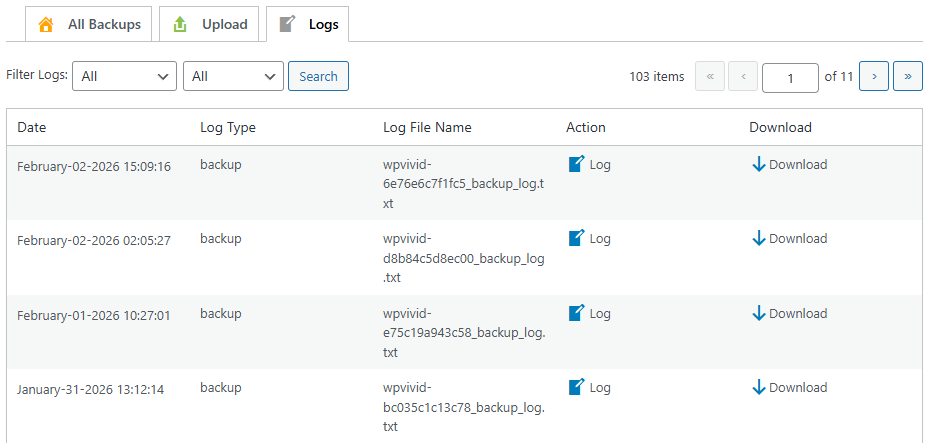
- Date
Displays the timestamp when the operation started. - Log Type
Indicates the operation category, including Backup, Restore, and Transfer (Migration). - Log File Name
Shows the automatically generated log file associated with the task. - Action
Provides quick access to view the log details directly in the browser. - Download
Allows you to download the full log file for offline analysis or technical support purposes.
Viewing Log Details
To view a log entry:
- Locate the desired log record.
- Click the Log icon under the Action column.
The system will display the complete execution output, including task progress, warnings, errors, and completion status.
Downloading Log Files
To download a log file:
- Find the log entry you want to export.
- Click the Download icon in the Download column.
Downloaded logs can be shared with WPvivid support or stored for auditing and troubleshooting purposes.
Filtering Logs
WPvivid Backup & Migration Pro includes built-in filtering tools to help manage large log histories efficiently.
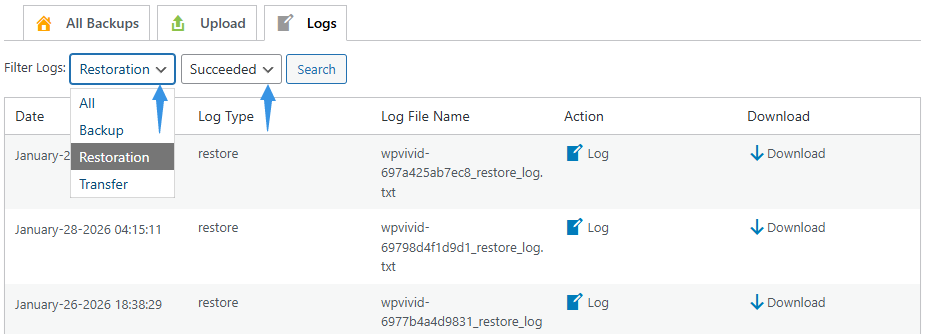
Task Filter
The Task Filter allows you to narrow log results based on task type:
- Backup
Displays logs of backup tasks - Restore
Display logs of restore tasks - Transfer
Displays logs of transfer (migration) tasks
Status Filter
The Status Filter allows you to narrow log results based on execution outcome:
- All
Displays all logs - Succeeded only
Shows only successfully completed operations - Failed only
Displays failed tasks for troubleshooting
Search and Filter Bar
The Search bar enables quick filtering based on selected criteria.
To filter logs:
- 1. Select your preferred filter option
- 2. Click the Search button.
Only log entries matching your filter rules will be displayed.
When submitting support requests, always attach the corresponding log file. It contains complete diagnostic information and significantly reduces issue resolution time.