


WPvivid Backup & Migration Pro Advanced Settings allow you to optimize backup and migration behavior for large websites and complex hosting environments. These options provide granular control over performance tuning, database processing, compression behavior, resource usage, and execution limits.
Accessing Advanced Settings
To access the Advanced Settings panel in WPvivid Backup Pro:
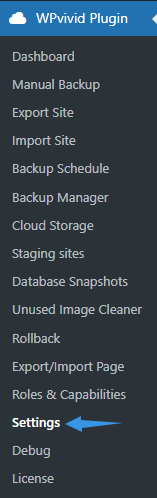
- Navigate to WPvivid Backup Pro → Settings → Backup (Advanced)
- You will see advanced backup performance and behavior parameters ready for configuration.
Advanced Settings Explanation
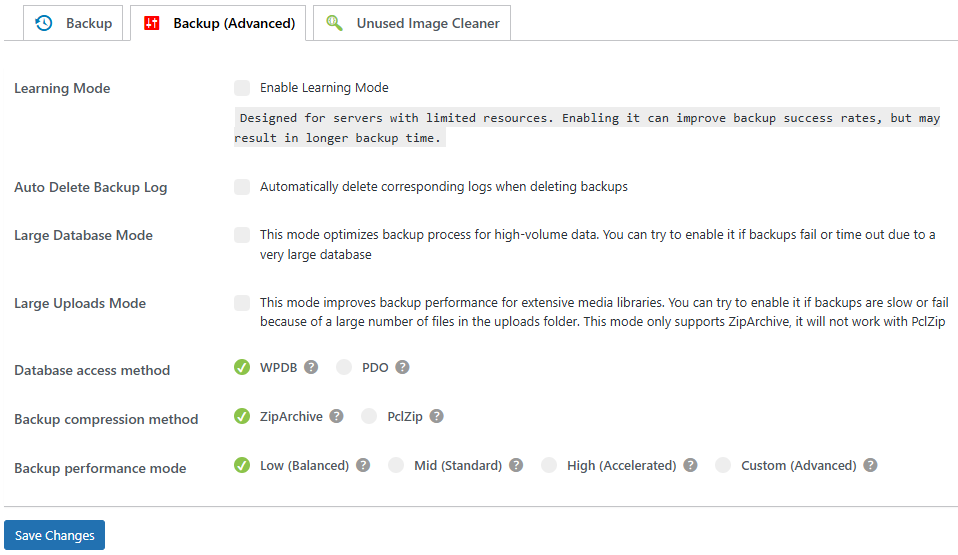
Learning Mode
Optimize backup and migration processes for servers with limited resources.
- Learning Mode
Automatically adjusts processing behavior to improve task success rates on restrictive hosting environments. Enabling this mode may increase overall backup or migration duration.
Auto Delete Backup Logs
Control automatic cleanup of backup log files.
- Auto Delete Backup Logs
Automatically removes backup log files when the associated backup files are deleted, helping reduce server storage usage.
Large Database Mode
Optimize processing for websites with large databases.
- Large Database Mode
Improves database export and import stability by adjusting processing parameters for large database tables.
Large Uploads Mode
Improve backup performance for sites with large media libraries.
- Large Uploads Mode
Optimizes backup performance when processing large upload directories. This mode requires the ZipArchive PHP extension and does not support PclZip.
Database Access Method
Select how WPvivid accesses your WordPress database during backup and migration operations.
- WPDB (Default)
Uses WordPress native database functions. Provides maximum compatibility but may be slower for large databases. - PDO (Recommended)
Uses the PHP PDO extension for faster database processing. Requires the pdo_mysql extension to be installed on your server.
Tip
Choose PDO when available to improve backup and migration speed, especially for large websites.
Choose PDO when available to improve backup and migration speed, especially for large websites.
Backup Compression Method
Configure how WPvivid compresses backup archives.
- ZipArchive (Default)
Provides faster compression performance and better compatibility. Requires the PHP ZIP extension. - PclZip
A stable fallback compression method included in WordPress core. WPvivid automatically switches to this method if ZipArchive is unavailable.
Note
If your server does not support ZipArchive, WPvivid will automatically use PclZip to ensure backup compatibility.
If your server does not support ZipArchive, WPvivid will automatically use PclZip to ensure backup compatibility.
Backup Performance Mode
Adjust how aggressively WPvivid uses server resources during backup creation.
- Low (Balanced)
Minimizes server resource usage. Best for shared hosting or limited environments. Backup files are split into smaller parts for improved stability. - Mid (Standard)
Provides a balanced combination of speed and stability. Recommended for most hosting environments. - High (Accelerated)
Uses more server resources to reduce backup time. Recommended for VPS or dedicated servers. Backup files are split into larger parts. - Custom (Advanced)
Unlocks advanced backup processing parameters for manual configuration.
Tip
If backups frequently fail or time out, switch to Low or Mid mode to improve stability.
If backups frequently fail or time out, switch to Low or Mid mode to improve stability.
Custom Backup Processing Settings
Manually configure advanced backup parameters for complex hosting environments and large websites.
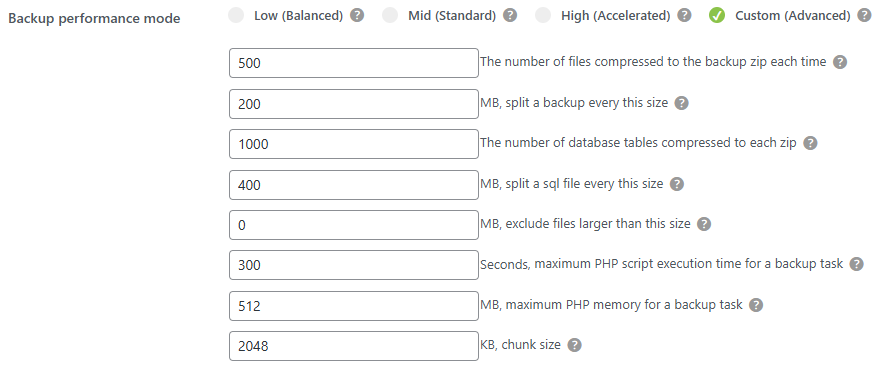
- The number of files compressed to the backup zip each time
Defines how many files are compressed into the backup ZIP file during each processing cycle. The default value is 500. Lower values improve backup stability and success rate but increase overall backup duration. If backup timeouts occur, try reducing this value. - Split a backup every this size
Splits large backups into multiple parts to avoid hosting ZIP file size limitations. Setting this value to 0MB automatically splits backups every 4GB. Reducing this value can significantly improve success rates on servers with limited execution time or disk I/O performance. - The number of database tables compressed to each zip
Defines how many database tables are included in each ZIP segment during the backup process. The default value is 1000, which is suitable for most websites. - Split a sql file every this size
Splits large SQL export files into multiple parts to avoid hosting file size restrictions. The default value is 400. It is recommended not to set this value lower than 100. If database export timeouts occur, try adjusting this setting. - Exclude files larger than this size
Excludes files larger than the specified size from the backup process. Setting the value to 0 removes size restrictions and includes all files. This option is useful for skipping unnecessary large files such as videos or media that may cause backup or migration failures. - Maximum PHP script execution time for a backup/migration task
Defines the maximum execution time allowed for each backup or migration cycle. This timeout is managed internally by WPvivid and is independent of server PHP limits. The default value is 1800 seconds, which is suitable for most shared hosting environments. On VPS or dedicated servers, this value can be increased up to 3600 seconds if needed. - Maximum PHP memory for a backup task
Temporarily increases the PHP memory limit available to WPvivid during backup and migration operations. The default value is 256MB. If memory exhaustion errors occur, increase this value to 512MB or higher depending on database size and complexity. The memory limit is automatically released after task completion. - Chunk size
Controls how much data is processed and transmitted per request cycle. Some hosting providers impose strict data packet size limits. Reducing this value to 512KB or 256KB can improve compatibility when backup, migration, or remote storage upload operations fail.
Note
Incorrect configuration of Advanced Settings can result in backup or migration failures. Only modify these parameters under the guidance of official WPvivid documentation or support.
Incorrect configuration of Advanced Settings can result in backup or migration failures. Only modify these parameters under the guidance of official WPvivid documentation or support.