


What Is Custom Local Backup Folder
The Custom Local Backup Folder setting allows you to define the specific local directory path for backup archives generated by WPvivid. You can choose to store backups inside the WordPress wp-content directory or specify a custom path outside the website root directory for enhanced security and isolation.
Storing backups outside the website directory is recommended for production environments to reduce exposure to public access and improve overall backup security.
Accessing Backup Folder Settings
To access the Custom Local Backup Folder configuration in WPvivid Backup Pro:
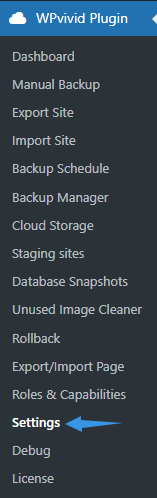
- Navigate to WPvivid Backup Pro → Settings → Backup.
- Locate the Backup Folder option where you can configure local backup locations.
Backup Location Options
WPvivid provides two storage location options for local backups, allowing flexibility based on hosting environment and security requirements.

- Backup to wp-content folder
Stores backup files inside the WordPress wp-content directory. This option offers fast setup and broad compatibility across most hosting providers. It is suitable for shared hosting environments where access to server-level directories is restricted. - Backup to outside the website directory
Stores backup files outside the WordPress root directory to improve security and prevent public access. This option requires entering a full server path to the target directory and is recommended for VPS, cloud, and dedicated hosting environments.
Configuring an External Backup Path
Follow the steps below to set a custom external directory for storing WPvivid backup files outside the WordPress installation folder.
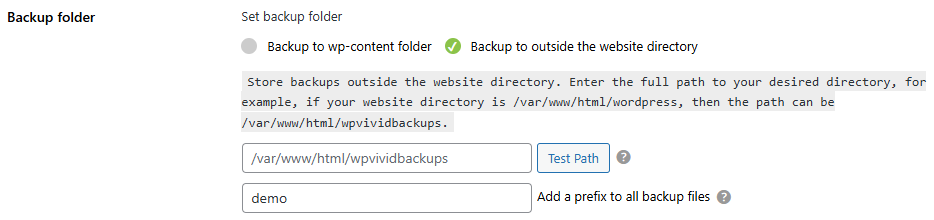
Step 1: Enable External Backup Location
- 1. Go to WPvivid Backup Pro → Settings → Backup.
- 2. Locate the Backup Folder section.
- 3. Select Backup to outside the website directory.
This enables WPvivid to store backup files outside the WordPress root directory.
Step 2: Enter the Server Path
- 1. Enter the full path to the directory where you want to store backups.
- 2. For example, if your website directory is /var/www/html/wordpress, enter /var/www/html/wpvividbackups.
WPvivid will use this directory as the destination for all locally stored backup files.
Step 3: Verify Folder Accessibility
- 1. Click the Test Path button.
- 2. Wait for WPvivid to validate directory availability and write permissions.
If the test succeeds, the backup folder is ready for use. If the test fails, verify that the parent directory has sufficient read and write permissions.
Step 4: Save Settings
- Click Save Changes at the bottom of the page.
The new external backup location will be applied to all future backup and migration tasks.
Permission and Folder Management Requirements
Proper permission configuration is required to ensure successful backup creation.
- Parent Directory Permissions
The parent directory must allow read and write access for the web server user. Without these permissions, WPvivid will not be able to create or write backup files. - Automatic Folder Creation
If the specified backup folder does not exist, WPvivid will attempt to create it automatically during path validation or backup execution.
Common Use Cases
- High-Security Production Websites
Store backups outside the website directory to reduce exposure and improve compliance with security best practices. - Large Websites with Frequent Backups
Use external storage paths to avoid consuming disk space inside the WordPress installation directory. - Multi-Site Server Environments
Configure separate backup folders for each website to improve organization and simplify backup management.
After changing the backup folder location, perform a test backup to confirm that the new storage path is functioning correctly before enabling scheduled backups.