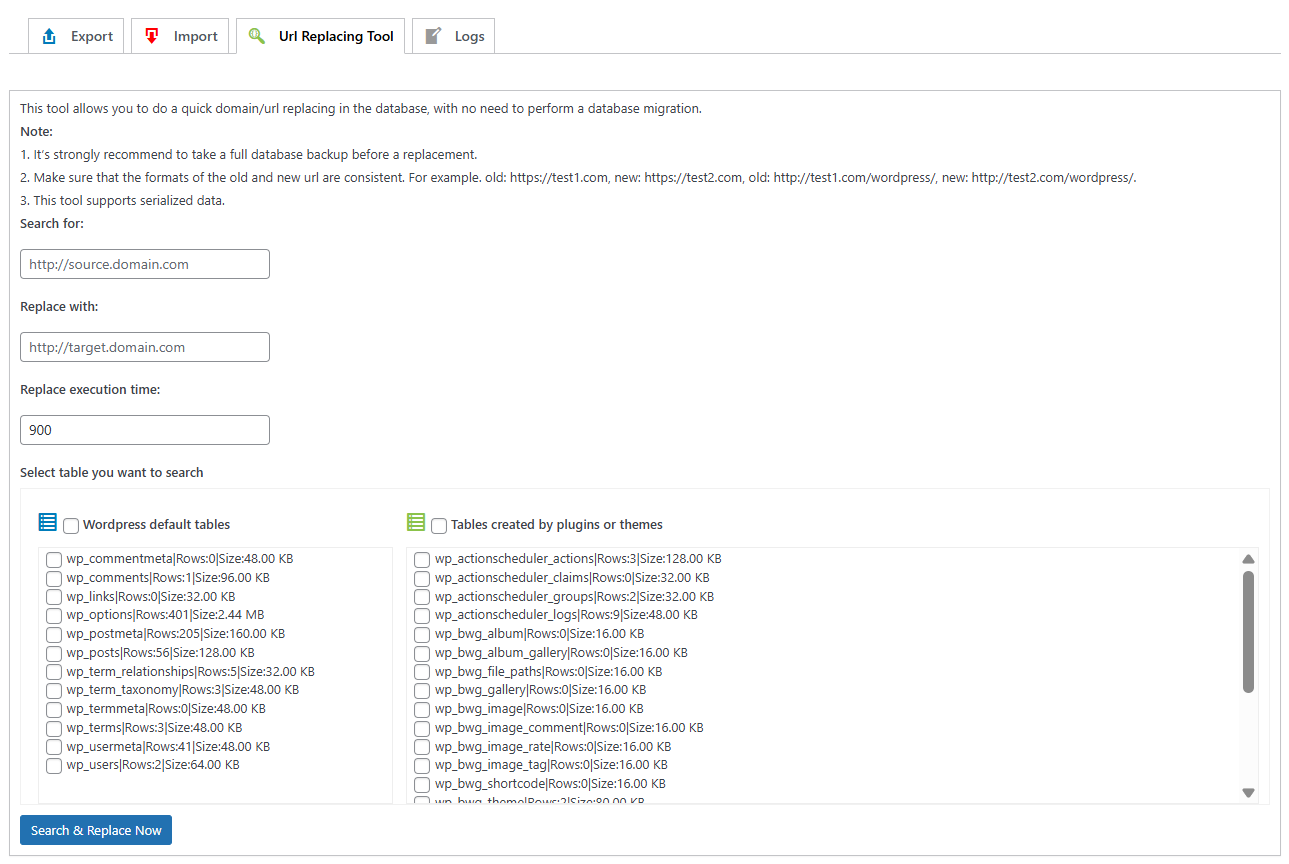
Starting with version 2.0.23, WPvivid Backup Pro includes a built-in URL Replacing Tool. This utility allows you to search and replace strings (such as domain names or URLs) directly within your WordPress database without needing to perform a full site migration or manually export/import SQL files.
This tool is specifically designed to handle serialized data, ensuring that plugin and theme settings remain intact after a URL change.
Warning
It is strongly recommended to perform a full database backup before using this tool. Changes made to the database are permanent and cannot be undone without a restoration.
It is strongly recommended to perform a full database backup before using this tool. Changes made to the database are permanent and cannot be undone without a restoration.
Step-by-Step Instructions
1. Access the Tool
- 1. Navigate to your WordPress admin dashboard.
- 2. Go to WPvivid Plugin > Export/Import Page > URL Replacing Tool.
2. Configure the Search and Replace
On the URL Replacing Tool page, fill in the following fields:
- 1. Search for (Old URL):
Enter the string or URL you want to replace (e.g., https://old-site.com). - 2. Replace with (New URL):
Enter the new string or URL (e.g., https://new-site.com). - 3. Select Tables:
Choose the specific database tables you wish to search. You can select individual tables or choose “All Tables” for a comprehensive replacement.
3. Execute the Process
- 1. Double-check your entries for any typos.
- 2. Click Search & Replace Now.