


White Label Overview
The White Label feature in WPvivid Backup Pro allows you to customize and rebrand the plugin interface within the WordPress admin area. This is useful for agencies, developers, and service providers who want to present a branded experience to clients or maintain a consistent interface with other custom tools.
With White Label settings, you can modify the plugin name, menu titles, logos, and links that appear in the WordPress dashboard.
1. How to Access White Label Settings
Starting with version 1.9.18, the White Label settings are hidden from the standard WordPress menu to maintain a clean interface for your clients.
For Single Sites
- 1. Log in to your WordPress admin dashboard.
- 2. Navigate to the WPvivid plugin page.
- 3. Add the following slug to the end of your browser’s URL:
/wp-admin/admin.php?page=wpvivid-dashboard&wpvivid_white_label=1
Example:yourdomain.com/wp-admin/admin.php?page=wpvivid-dashboard&wpvivid_white_label=1
For WordPress Multisite
- 1. Navigate to the Network Admin dashboard.
- 2. Access the settings by visiting:
yourdomain.com/wp-admin/network/admin.php?page=wpvivid-dashboard&wpvivid_white_label=1.
2. Available Customization Options
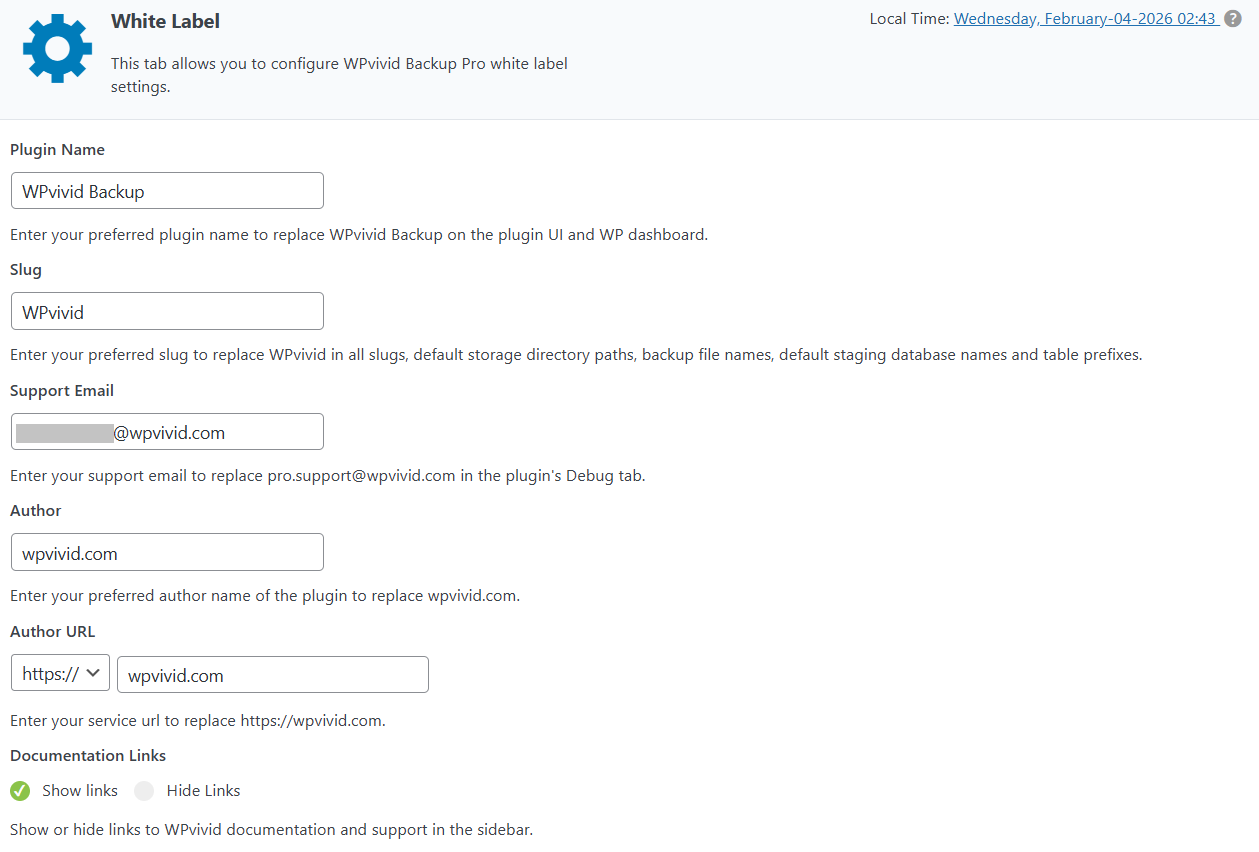
Once on the White Label page, you can customize the following fields:
- 1. Plugin Name:
Change the name that appears in the WordPress dashboard and plugin list. - 2. Slug:
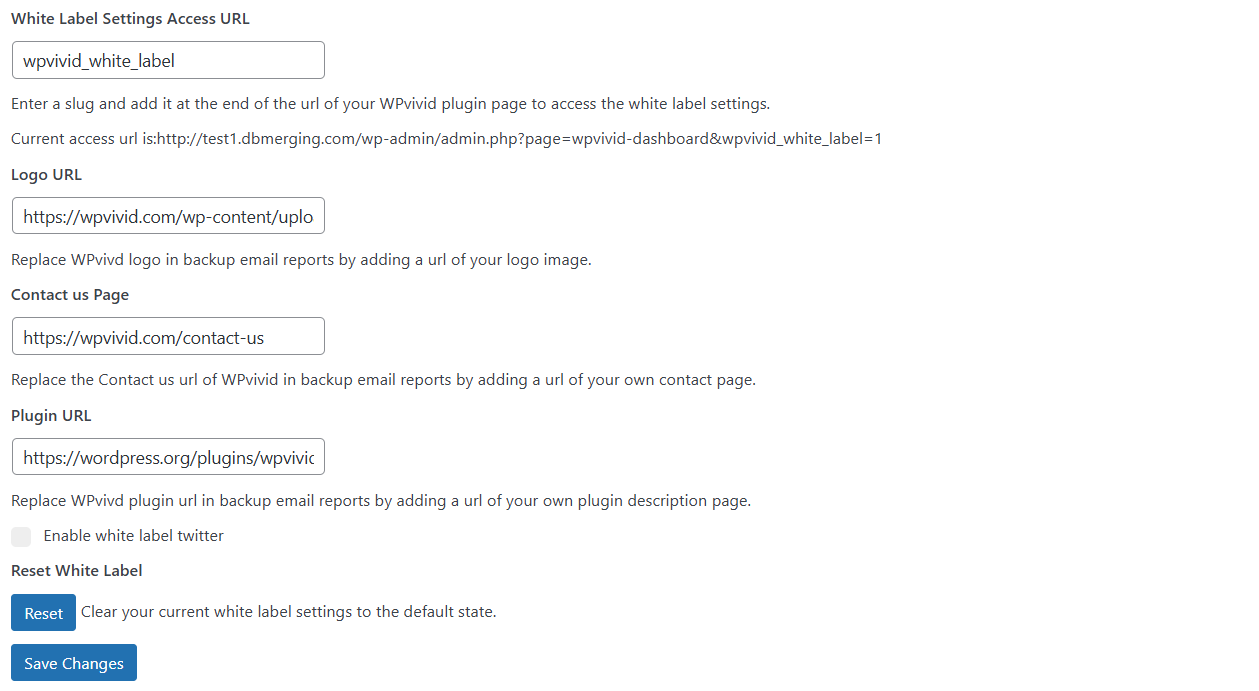
Customize the URL slug (e.g., replace wpvivid with mybrand). This also affects backup file names and storage directory paths. - 3. Logo URL:
Replace the WPvivid logo in email reports with your company logo. - 4. Support & Author Info:
Support Email: Replaces the default support contact in the Debug tab.
Author & Author URL: Replaces “wpvivid.com” with your brand name and website. - 5. Links & Visibility:
Documentation Links: Toggle the visibility of sidebar links to official documentation.
Submit a Ticket: Show or hide the direct support ticket link.
Contact Us/Plugin URL: Customize the links provided in automated email reports.
To save your white label configuration, click Save Changes.
3. Important Considerations for Migration
Warning regarding backup identification: The plugin identifies backup files based on the branding “slug” defined in your White Label settings.
- 1. Rule:
If a source site is white-labeled (e.g., using the slugmybrand), the destination site must be white-labeled with the exact same slug for the plugin to recognize and restore the backup file. - 2. Solution:
If you are moving a backup to a site without the same branding, you must temporarily update the destination site’s White Label settings.
4. Resetting and Reverting
If you need to return the plugin to its original state:
- 1. Access the White Label settings page using your custom access URL.
- 2. Click the Reset button at the bottom of the page.
1. White Label customization affects only the admin interface; it does not modify core plugin functionality.
2. Changes remain intact during plugin updates.
3. If multiple users manage settings, choose naming and branding that is intuitive for all administrators.