


What Is a Database Snapshot
A database snapshot is a point-in-time copy of your WordPress database state. Unlike traditional backups that package both files and databases into compressed archives, snapshots focus only on database data and are optimized for fast creation and rapid restoration.
Database snapshots allow you to:
- Create quick rollback points before updates or content changes
- Restore database content without affecting site files
- Recover from accidental content deletion or configuration errors
- Test changes safely with minimal overhead
Database Backup vs Database Snapshot
Although both features protect your database, they serve different purposes, understanding the difference helps you choose the right tool for your needs:
| Feature | Database Snapshots | Full Backups |
|---|---|---|
| Content | Database tables only | Database + WordPress files |
| Creation Speed | Seconds | Minutes (depending on size) |
| Restore Speed | Instant (seconds) | Several minutes |
| Storage Location | In database | Files on server/remote storage |
| Best For | Quick rollbacks, testing changes | Complete site protection, migration |
| Use Case | Before updates, testing, development | Disaster recovery, long-term storage |
Database Snapshots do not replace full backups. Use snapshots for short-term rollback protection and full backups for long-term disaster recovery and offsite storage.
Common Use Cases
Database Snapshots are especially useful in the following scenarios:
- Before updating WordPress core, themes, or plugins
- Before bulk editing posts, pages, or WooCommerce products
- Before importing large amounts of content
- Before testing new configurations or site features
- Quick rollback during development and staging workflows
How to Create Database Snapshots
Before you start using database snapshots, ensure that WPvivid Backup & Migration Pro is installed and activated (Database Snapshots addon is automatically included).
Step 1: Access Snapshot Panel
From your WordPress admin dashboard:
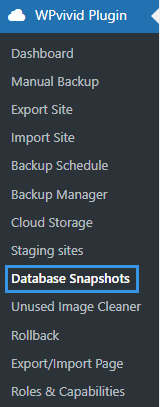
- Navigate to WPvivid Backup Pro → Database Snapshots
- You’ll see the Snapshots tab with the snapshot creation interface
Step 2: Create a New Snapshot
On the Snapshots tab:

- Enter a descriptive comment in the comment field (optional)
- Click Create Snapshot
- WPvivid will start exporting your database
- Progress will be displayed in real time
Step 3: Verify Snapshot Creation
Once completed successfully:
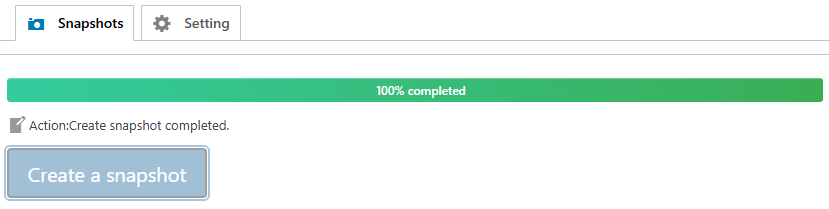
- A success message will appear.
- The snapshot will appear in the snapshot list
- Timestamp and table prefix will be displayed
- The snapshot will be available for immediate restore
Snapshot creation speed depends on database size and server performance. Large databases may require additional processing time.
How to Restore from Snapshots
Step 1: Open Snapshots List

- Go to WPvivid Backup Pro → Database Snapshots
- Locate the snapshot you want to restore
Step 2: Select Snapshot Version and Restore

- Click the Restore button next to the snapshot
- Confirm the restore action
- WPvivid will begin replacing the current database content
Step 3: Verify Restoration
After restoration completes:
- A success message will appear
- Check your website key pages and functions
- Verify that content has reverted to the snapshot state
Database snapshot restoration overwrites the current database content. All changes made after the snapshot was created will be permanently lost. Always confirm the snapshot version before restoring.
Snapshot Settings
Database Snapshots includes configurable settings to help you manage storage space and automate snapshot retention. You can configure snapshot behavior in the Settings tab of the Database Snapshots addon.
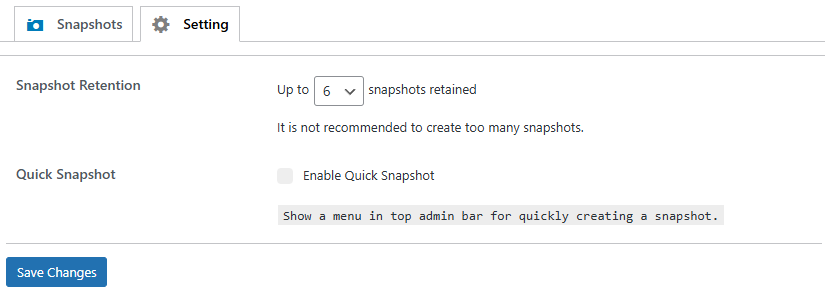
- Snapshots Retained
Defines the maximum number of snapshots stored on your server. When the limit is reached, the oldest snapshots are automatically removed. - Enable Quick Snapshot
Adds a shortcut option to the WordPress admin top bar, allowing you to create snapshots instantly without opening the WPvivid dashboard.
It is not recommended to store excessive snapshots. Keeping a moderate number of recent snapshots helps reduce disk usage and improves management efficiency.
Performance Considerations
Database snapshots consume database storage space because they duplicate your database tables, so it may not be the best choice for:
- Very large databases (1GB+) where storage multiplication becomes problematic
- Shared hosting with strict database size limits
- Situations requiring long-term backup retention (use full backups instead)
- When file changes are also involved (full backups include files and database)
- Off-site backup requirements (snapshots are stored in the same database)