


What Are User Roles and Capabilities
WPvivid integrates with WordPress’s native role and capability system to provide fine-grained access control over backup and migration operations.
In WPvivid terms:
- User roles
Refer to standard WordPress roles such as Administrator, Editor, Author, and custom roles created by role management plugins. - Capabilities
Define what actions each role is allowed to perform within WPvivid, such as creating backups, restoring sites, configuring storage, or modifying advanced settings.
Instead of granting full administrative access, WPvivid allows you to selectively assign permissions so each user role only has access to the features they need.
Super Admin Permission Architecture
WPvivid includes a unique super admin capability that acts as the highest permission level within the WPvivid plugin ecosystem:
- The super admin always has full access to all WPvivid features
- The super admin can manage and modify permissions for every other role
- Standard WordPress administrators can be restricted by super admin rules
- Critical operations such as restore, migration, deletion, and settings modification can be centrally controlled
This architecture ensures that permission authority is not automatically inherited from WordPress administrator privileges.
WPvivid super admin applies only to WPvivid plugin permissions. It does not change or affect WordPress core role capabilities.
Default Permission Behavior
By default, WPvivid restricts access to backup and migration features to WordPress Administrators only.
However, once a super admin is designated:
- Only the assigned super admin user retain unrestricted WPvivid access
- Administrator access becomes permission-based
- Other roles (Editor, Author, Contributor, Subscriber) have no WPvivid access unless explicitly granted
This behavior prevents privilege escalation and ensures tighter operational security.
Available Capability Controls
WPvivid provides multiple permission categories that allow you to control access at a functional level.
Backup Management Permissions
Controls access to backup creation and scheduling:
- Create manual backups
- Delete existing backups
- Download backup files
- Manage backup schedules
Restore and Migration Permissions
Control access to critical restoration and migration operations:
- Restore backups
- Perform site migrations
- Import backup packages
Storage and Settings Permissions
Control access to plugin-level configurations:
- Configure remote storage destinations
- Modify general backup settings
- Adjust advanced performance and compatibility settings
Log and Task Monitoring Permissions
Control access to operational visibility:
- View backup and restore logs
- Monitor task status and progress
How to Manage User Roles and Capabilities
Before you start, ensure that WPvivid Backup Pro and the Roles & Capabilities addon is installed and activated on the site. For installation guidance, refer to our installation documentation.
Step 1: Designate a Super Admin
When you first install the Roles & Capabilities addon, you need to designate one administrator as the super admin:
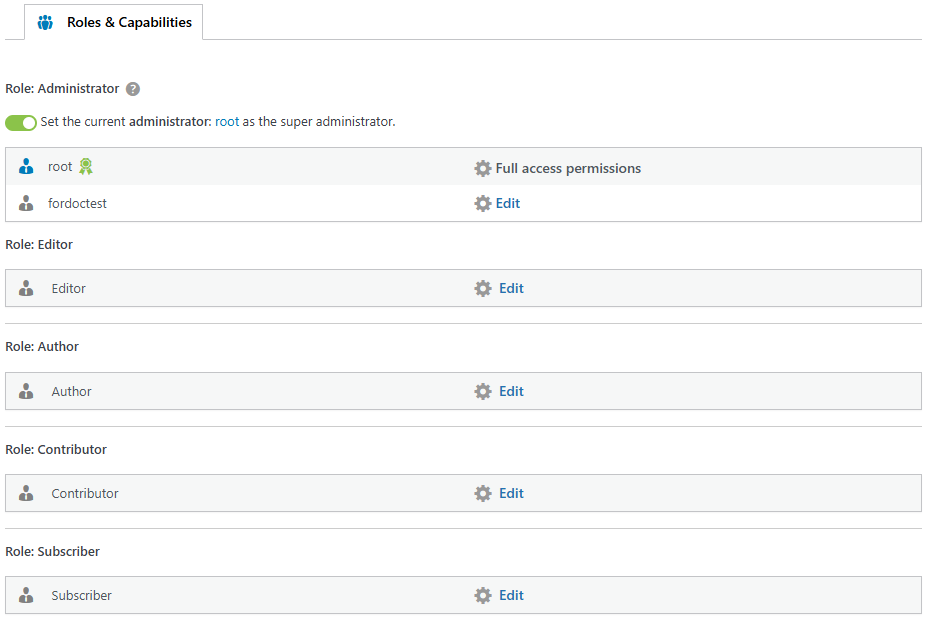
- Log in to your WordPress admin dashboard using the account you wish to designate as the super admin
- Go to WPvivid Backup Pro → Roles & Capabilities
- Enable the Set super administrator option
- Once activated, your current user account is assigned the super admin role
Step 2: Access Roles & Capabilities Settings
- Log in as the super admin
- Go to WPvivid Backup Pro → Roles & Capabilities
- You’ll see a list of all user roles available on your WordPress site
The Roles & Capabilities interface displays each user role with checkboxes for available capabilities.
Step 3: Select Role to Edit
- Locate the user role you want to modify (Administrator, Editor, Author, Contributor, Subscriber)
- Click on Edit to view available capabilities
- As super admin, you can now edit all roles including administrator
Step 4: Assign or Remove Capabilities
To grant capabilities to a role:
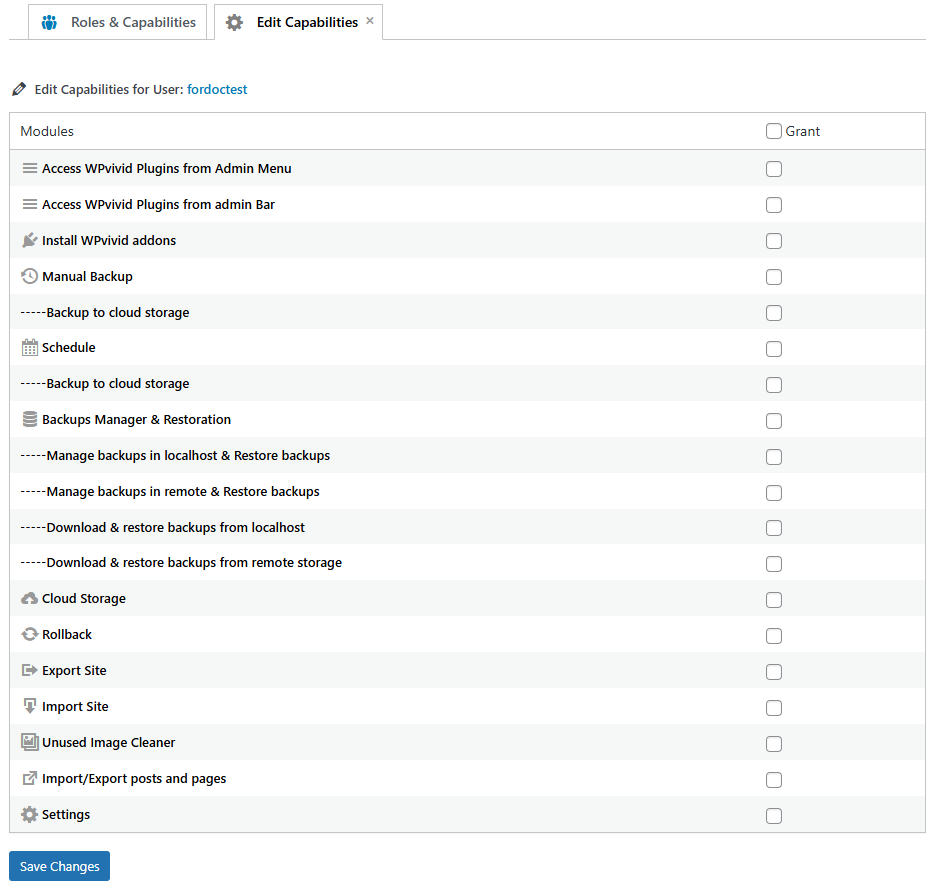
- Check the boxes next to capabilities you want to grant
- Click Save Changes to apply your settings.
To revoke capabilities from a role:
- Uncheck the boxes next to capabilities you want to remove
- Click Save Changes to apply your settings.
After saving, the new permissions take effect immediately for all users with that role.
Some capabilities work best together. For example, granting “Create Backups” without “View Backups” may confuse users since they can’t see the results of their backup creation.
Role-Based Use Case Examples
Below are common role configuration scenarios used by agencies and multi-user teams.
Agency Management Workflow
- Super administrators: Full backup, restore, migration, and settings access
- Other administrators: Backup creation and other permissions as needed
- Support staff: Backup creation and log viewing only
- Clients: No backup or restore permissions
Editorial Team Workflow
- Editors: Create backups before publishing major content updates
- Super administrators: Perform restores and system-level configuration
Developer Maintenance Workflow
- Developers: Backup and migration access
- Super administrators: Backup scheduling and restoration access
Best Practices for Roles Management
Follow these best practices to maintain secure and effective role management:
- Apply the principle of least privilege — grant only the permissions required
- Restrict restore and migration access to trusted administrators
- Avoid assigning advanced settings access to non-technical users to prevent accidental misconfiguration
- Review role permissions periodically
- Revoke access immediately when team members leave
Granting restore or migration permissions to untrained users can lead to irreversible data loss or site downtime. Always verify user responsibilities before assigning elevated privileges.