


What Is Database Backup Encryption
Database backup encryption is a security feature that protects your WordPress database backups by encrypting them with a password. When enabled, all new database backups are automatically encrypted, making them unreadable without the correct decryption password.
The workflow is as follows:
- WPvivid exports the WordPress database during backup creation
- The exported database file is encrypted using the configured password
- The encrypted database file is packaged into the backup archive
- During restore, WPvivid requests the password to decrypt the database file
Database encryption applies only to the database portion of your backups. WordPress files (themes, plugins, uploads) remain unencrypted.
Common Use Cases
Encrypted database backups are strongly recommended in the following scenarios:
- GDPR Compliance
If you operate in the European Union or store personal data of EU citizens, GDPR requires appropriate technical measures to protect personal information. Encryption helps satisfy these requirements - Sensitive Data Protection
Encrypted backups protect sensitive data from unauthorized access, even if backup files are stolen or intercepted. Without your password, encrypted backups are completely unreadable. - Data Breach Protection
In the event of a security breach or unauthorized access to your backup storage, encrypted database backups remain secure and unusable without the decryption password.
Encryption Algorithm
WPvivid Backup & Migration Pro uses Advanced Encryption Standard (AES), also known as Rijndael, to secure your database backups. AES is an industry-standard encryption algorithm trusted by governments, financial institutions, and security professionals worldwide.
Key security features:
- AES Encryption:
Military-grade encryption standard approved by the U.S. National Security Agency - Strong Key Sizes:
Supports 128, 192, or 256-bit encryption keys - Brute-Force Protection:
Provides guaranteed security against unauthorized decryption attempts - Industry Standard:
Same encryption used by banks, government agencies, and major corporations
How to Enable Database Encryption
Step 1: Access Encryption Settings
To enable the database backup encryption:

- Go to WPvivid Backup Pro → Settings
- Locate the Database Encryption section
Step 2: Enable Encryption
- Check the Enable Database Encryption option
- The password field will become active
When encryption is enabled, all new database backups will be automatically encrypted. Existing backups remain in their current state (unencrypted backups stay unencrypted).
Step 3: Set Encryption Password
Create a strong encryption password following these best practices:
- Use at least 12 characters (longer is better)
- Include uppercase and lowercase letters
- Include numbers and special symbols
- Avoid common words, phrases, or personal information
Enter your chosen password in the password field.
Step 4: Save and Verify
- Click Save Changes to activate encryption
- Verify the encryption setting remains checked after saving
From this point forward, all new database backups will be encrypted with your password.
Your encryption password cannot be recovered or reset. WPvivid cannot decrypt your backups without the password. If you lose your password, your encrypted backups will become permanently inaccessible. Store your password securely in multiple locations.
How to Restore Encrypted Backups
Step 1: Select Backup to Restore
On the site where you want to restore the encrypted backup:

- Go to WPvivid Backup Pro → Backup Manager
- Locate the encrypted backup you want to restore
- Click Restore to open the pre-restore configurations
Step 2: Enter the Password and Restore
On the restoration page that opens:
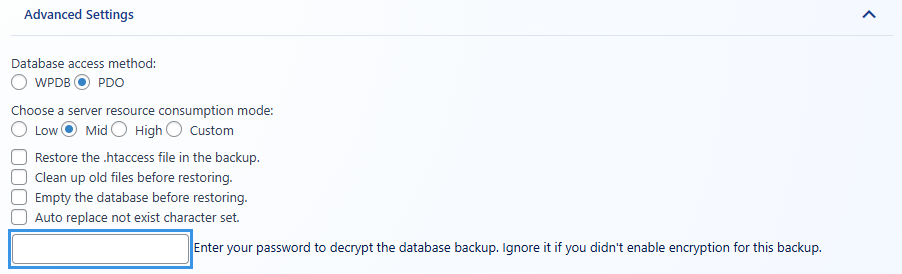
- Click Advanced Settings and locate the Password field
- Enter the same password used to encrypt the backup
- Click Restore icon to begin the restoration process
Step 3: Automatic Decryption and Restoration
WPvivid will automatically decrypt the database during restoration:
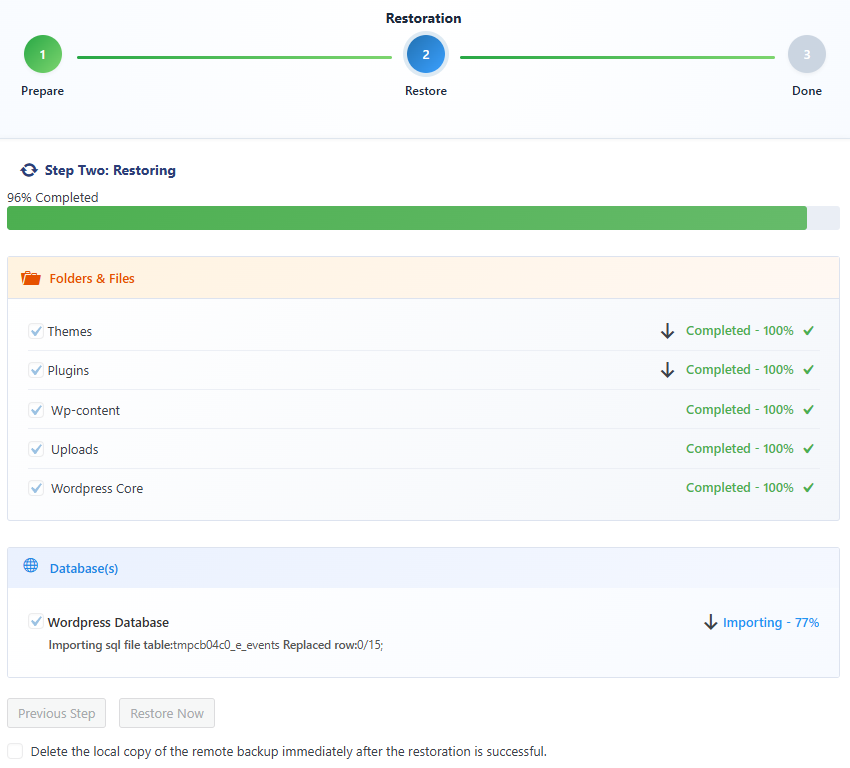
- The plugin verifies your encryption password
- The database backup is decrypted during restoration
- Database content is restored to your WordPress installation
- Progress is displayed in real-time
Best Practices for Encrypted Backups
To ensure reliable and secure encrypted backup operations, follow these best practices:
- Use strong, unique passwords for database encryption
- Store encryption credentials in a secure password manager
- Enable remote storage together with encryption for offsite protection
- Test restore procedures periodically to verify encryption workflow
- Maintain multiple encrypted backup versions for redundancy