


The Manual Backup page is the primary hub of the WPvivid plugin. From here, you can manually create on-demand backups for safekeeping, restoration, or website migration.
The process is divided into three simple steps:
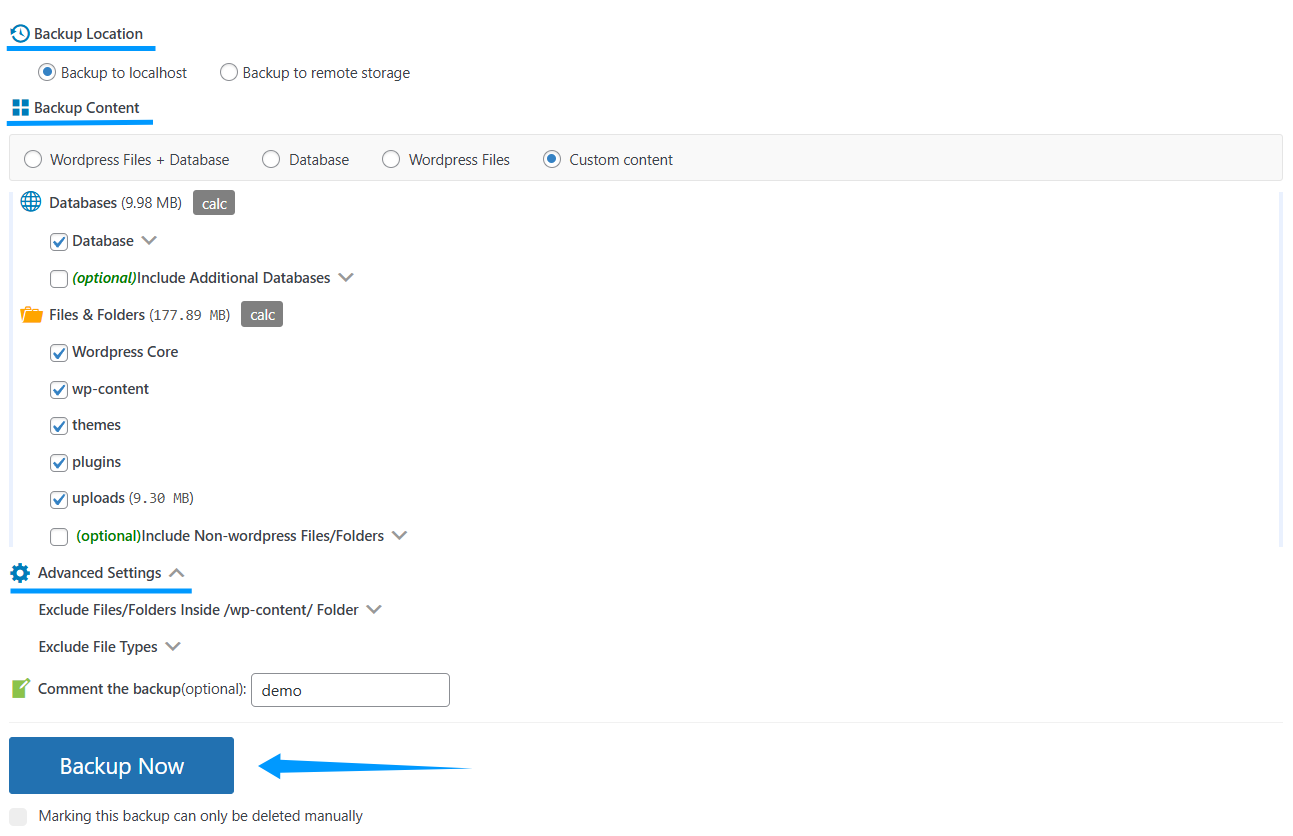
Step 1: Choose Backup Location
Select where you would like to store your backup files:
- Localhost: Saves the backup locally on your web server.
- Remote Storage: Sends the backup directly to your configured cloud storage (e.g., Google Drive, Dropbox, etc.).
Step 2: Select Backup Content
Customize exactly what data you want to include or exclude:
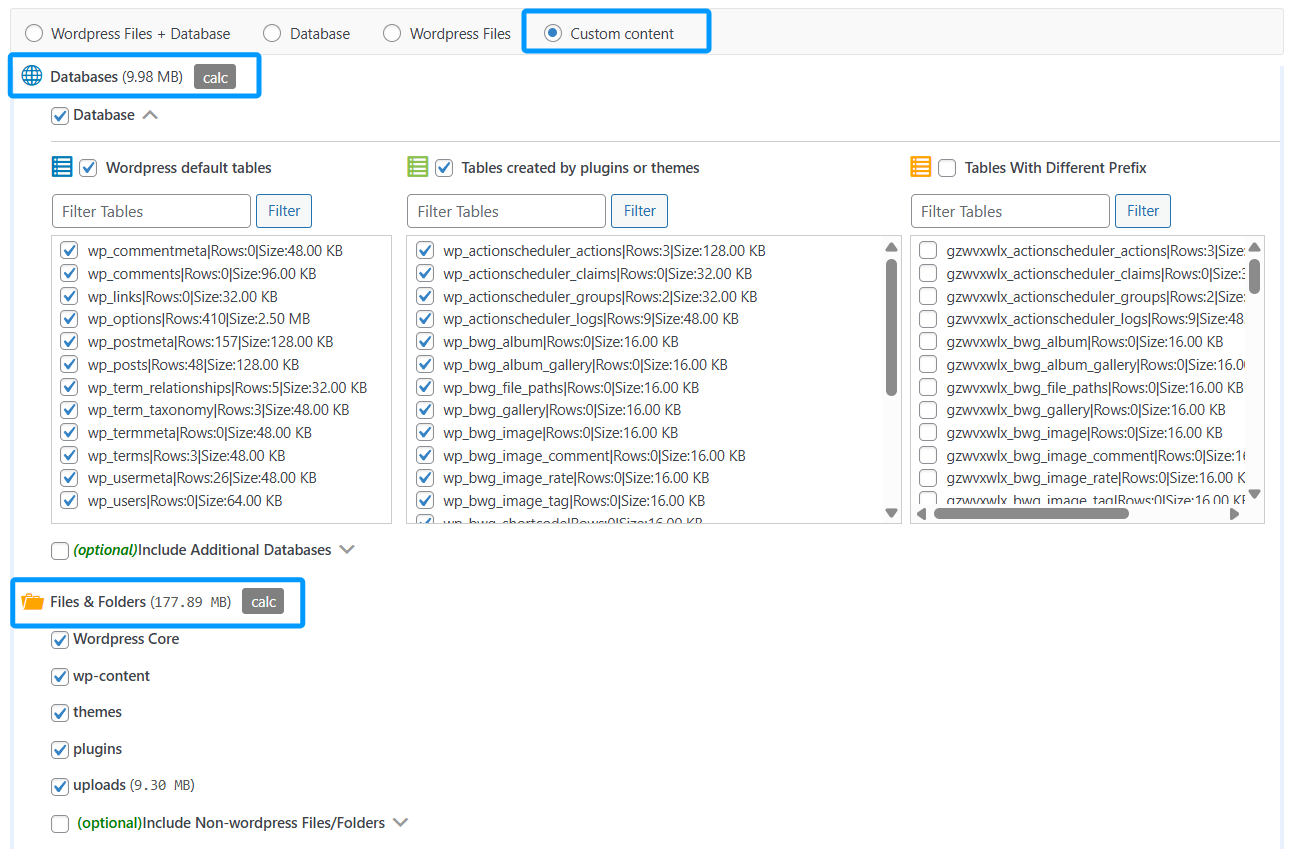
Database:
- WordPress default tables.
- Tables created by plugins or themes.
- Tables with different prefixes.
- Include additional external databases (Optional).
Files & Folders:
- Select from WordPress core, wp-content, themes, plugins, and uploads.
- Include non-WordPress files and folders located in your directory (Optional).
Advanced Settings:
- Exclude specific files or folders inside the
/wp-content/directory. - Exclude specific file types (e.g.,
.mp4,.zip). - Add a custom note to the backup for easy identification later.
Step 3: Perform the backup
Click the Backup Now button to start making a backup. You can choose to “Lock” the backup. A locked backup is protected from automatic deletion and can only be removed manually.
Notes
1. WPvivid does not restore
2. WPvivid excludes its own plugin files from backups. To move your configuration, you can use the Export/Import Settnigs option on the plugin Settings page.
3. If migrating a child theme, ensure the parent theme is also included in the backup if it is not already installed on the destination site.
4. For the smoothest migration experience, we recommend temporarily deactivating 301 redirect plugins, firewalls/security plugins, and caching plugins before starting the transfer.
1. WPvivid does not restore
.htaccess or wp-config.php files. Restoring these on a different server or site can cause critical errors. Please manually download and copy these files if specific configurations are needed.2. WPvivid excludes its own plugin files from backups. To move your configuration, you can use the Export/Import Settnigs option on the plugin Settings page.
3. If migrating a child theme, ensure the parent theme is also included in the backup if it is not already installed on the destination site.
4. For the smoothest migration experience, we recommend temporarily deactivating 301 redirect plugins, firewalls/security plugins, and caching plugins before starting the transfer.