


Configure WPvivid Backup Plugin General Settings to control how backups are created, stored, cleaned up, and reported. These options help you balance backup reliability, disk usage, and server performance. Most users can achieve stable operation using the default recommended settings.
General Settings
Backup Behavior & Retention Settings
These options control how WPvivid generates, retains, and packages backups.
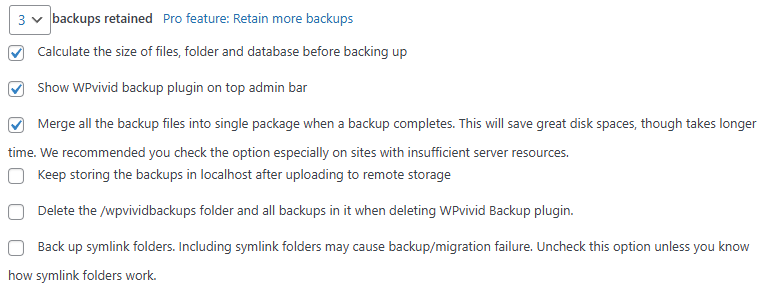
- Backups retained
Defines the maximum number of backup archives stored locally and remotely. When the limit is reached, the oldest backups are automatically deleted. - Calculate the size of files, folders, and database before backing up
Scans your site content before starting the backup process and displays an estimated backup size. - Show WPvivid backup plugin on top admin bar
Adds a shortcut menu to the WordPress admin toolbar for quick access to backup actions. - Merge all backup files into a single package
Combines all backup components into one compressed archive. This reduces file count but may increase processing time. - Keep storing backups in localhost after uploading to remote storage
Keeps a local copy of backups after they are successfully uploaded to remote storage. - Back up symlink folders
Includes symbolic link directories in backup operations.
Tip
Enabling file merging or symlink backups may increase server resource usage. Disable these options if you experience performance or timeout issues.
Enabling file merging or symlink backups may increase server resource usage. Disable these options if you experience performance or timeout issues.
Backup Folder & Naming Settings
Configure where backup files are stored locally and how they are named.
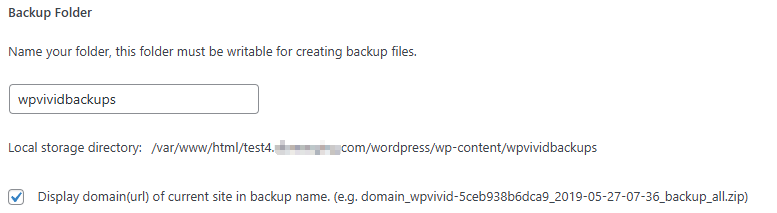
- Backup folder name
Customize the directory name used to store backup files on your server. The folder must be writable by the web server. - Display domain in backup file name
Adds your website domain name to backup filenames, making identification easier when managing multiple sites or environments.
Email Notification Settings
Configure automated email reports for backup activities to monitor your backup status without logging into the WordPress dashboard. Follow the steps below to enable email reports for your website:
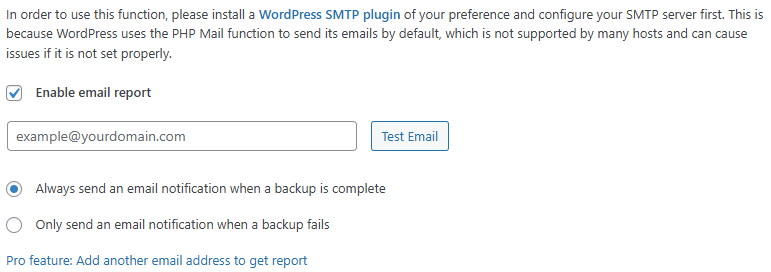
- 1. Enable email report
Activates email notifications for backup events. - 2. Enter notification email address
Specifies the recipient email address (for example: [email protected]) where backup reports will be sent. - 3. Choose email sending conditions
Choose whether to receive a notification for every completed backup (regardless of status) or only when a task encounters errors or fails.
Note
Some hosting providers restrict PHP mail delivery. For reliable notification delivery, it is recommended to configure SMTP email sending.
Some hosting providers restrict PHP mail delivery. For reliable notification delivery, it is recommended to configure SMTP email sending.
Cleanup & Disk Management
Manage backup cleanup behavior and free disk space used by WPvivid-generated files.
- Remove out-of-date backups
Immediately deletes backups that exceed your current retention limit from both local storage and remote destinations. - Delete backup folder when plugin is removed
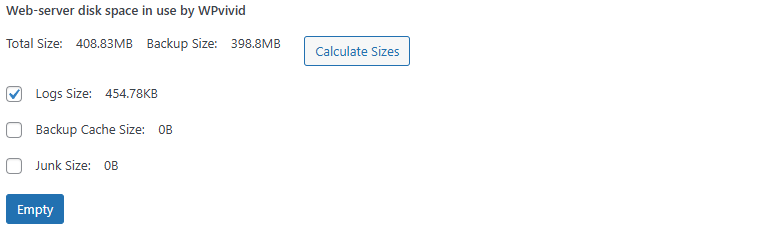
Removes all WPvivid backup data and plugin-generated files when the plugin is uninstalled. - Clean web-server disk space in use by WPvivid
Displays disk usage statistics and allows you to remove unnecessary plugin-generated files, including backup archives, operation logs, temporary cache files, and unused plugin data.
Tip
Regularly cleaning logs and temporary cache files helps prevent unnecessary disk usage and improves server performance.
Regularly cleaning logs and temporary cache files helps prevent unnecessary disk usage and improves server performance.
Import & Export Settings
Transfer WPvivid settings between websites or preserve configuration snapshots.
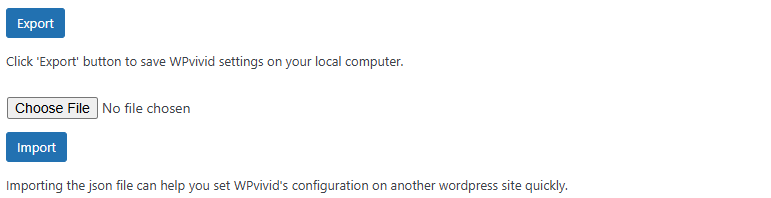
- Export Settings
Downloads a configuration file containing your current WPvivid settings, including backup schedules and cloud storage configurations. - Import Settings
Uploads a previously exported configuration file to apply the same settings on another site.
Tip
Export your configuration before performing site migrations or major configuration changes to preserve your backup setup.
Export your configuration before performing site migrations or major configuration changes to preserve your backup setup.